


Proton Black Friday, until 30 November: 50% off Proton Unlimited on the 12-month plan, $77.88 for the first 12 months.
After that it renews at $119.88 a year, the regular price. See every Proton Black Friday deal.
Short answer: To de-Google your life without losing your email history, your files or your passwords, move to Proton one service at a time: Proton Mail with Easy Switch for Gmail, Proton Drive for Google Drive and Google Photos, Proton Pass for the passwords saved in Chrome, plus Proton Calendar and Proton VPN, and pay for Proton Unlimited only once you are moving three or more of them.
- Start free if you want to test the route: every Proton app has a free plan, and Easy Switch is included on it.
- Pick Proton Unlimited if you are replacing Gmail, Drive or Photos, and your passwords at once: it covers all of them on one account.
- Pick Mail Plus alone if email is the only Google service you want to leave.
- Look at Duo or Family if a partner or children are switching with you.
Proton Unlimited partner offer: $109.12 for the first 12 months, then renews at $119.88 a year. Standard prices: $12.99 a month, $119.88 a year, or $191.76 for the first two years, renewing at $119.88 a year. Free plans: yes, with Easy Switch included. Prices in US dollars, checked October 11, 2026.
Table of contents
Which Proton app replaces which Google service?
Each Google service you use daily has a Proton counterpart, and Proton has written a migration path for most of them. The difference is the business model: Proton’s apps are built around end-to-end encryption, which Proton describes as meaning that only you and the people you choose to share with can read your content, “not even Proton”. Google’s apps are free because they are part of an advertising company. You do not have to agree with every argument in the privacy debate to see the practical appeal of keeping your inbox, photos and passwords with a company whose only product is the subscription.
If you want to de-Google your life, this guide is the map for the whole move. It covers what replaces what, the order that causes the least disruption, how your data actually travels in each case, what it costs, and the handful of Google services Proton does not replace at all. Every step comes from Proton’s own support documentation as it read on October 11, 2026; we describe the tools from those guides rather than from an invented personal story, and we link to the source each time.
| Google service | Proton replacement | How your data moves | Free plan |
|---|---|---|---|
| Gmail | Proton Mail | Easy Switch imports mail, contacts and calendars, and connects your Gmail address | 1 address, up to 1 GB of mail storage, 150 messages a day |
| Google Calendar | Proton Calendar | Easy Switch, as a one-time import | 3 personal calendars |
| Google Drive, Docs and Sheets | Proton Drive, with Proton Docs and Sheets | Google Takeout export, then the desktop or web app | Up to 5 GB of Drive storage, document editor and spreadsheets included |
| Google Photos | Proton Drive Photos | Google Takeout export, then the web app or the Windows app; phone backup for new photos | Shares the Drive storage |
| Chrome and Google Password Manager | Proton Pass | Export a .csv file from Google Password Manager, import it into Pass | Unlimited logins and notes, 2 vaults, 10 aliases |
| No direct Google equivalent | Proton VPN | Nothing to move | 1 device, servers in 10 countries chosen for you |
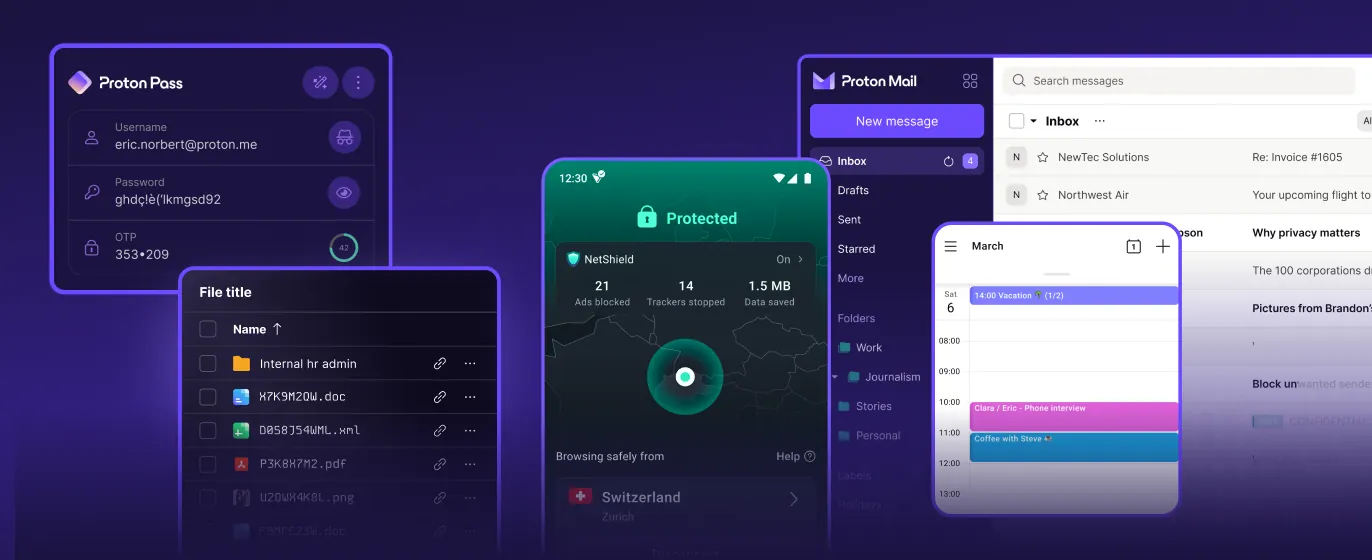
The free column matters more than it looks. It means you can test every single step below before paying anything, and it means a partial move is perfectly workable: plenty of people keep Proton Mail on a paid plan and the other apps on free tiers. The paid question only gets interesting once several services move at the same time, which is where Proton Unlimited comes in, and we will get to the arithmetic in the cost section.
In what order should you move?
The least painful way to de-Google your life is to move the things that other accounts depend on first, and the things that are just storage last. Your email address is the login for dozens of other services, so it is the slowest part to finish, while your photos and files can move in an afternoon once the export is ready. A sensible order looks like this:
- Passwords first. Import your Chrome passwords into Proton Pass. You will be changing the email address on many accounts later, and having every login in one place, outside Chrome, makes that work faster.
- Email second. Connect Gmail to Proton Mail with Easy Switch, so your history arrives and new Gmail messages keep landing in Proton while you update accounts one by one.
- Calendar and contacts third. Easy Switch brings them over in the same session as your mail, or separately afterwards.
- Files and photos fourth. Request a Google Takeout export early, because it can take a while to prepare, then upload it to Proton Drive and switch your phone’s photo backup to Proton.
- The VPN whenever you like. It replaces nothing at Google, so it does not block or depend on any other step.
- Close down last. Delete data from Google only after you have checked that each import is complete, and keep the Gmail account alive until the stream of mail to it has dried up.
One timing detail is easy to miss. Google sends the Takeout download link to your Gmail inbox, and Proton’s Google Photos guide notes that the link stays available for one week. So do not delete or abandon Gmail before your Takeout exports have been downloaded. In practice that is another reason to keep the Gmail connection running for a few months while everything settles.
Plan the move over weeks, not a weekend. The imports are quick; updating the email address on your bank, your utilities, your phone carrier, your online shops and every newsletter is not. Proton’s own Gmail guide suggests starting with the accounts that matter most, such as banking, healthcare, government services and anything tied to a payment method, and working down from there.
How do you replace Gmail?
Gmail is replaced by Proton Mail, and the tool that does the moving is Easy Switch, which is built into Proton Mail’s settings and is included on the free plan. Proton’s guide to migrating from Gmail describes a recommended setup with two halves: an import of your existing Gmail data, and a Gmail connection that keeps forwarding new mail to Proton and lets you send from your Gmail address inside Proton Mail.
The import
You open Proton Mail settings, go to Import via Easy Switch, choose Google and click Connect to Gmail. Google then asks you to grant permissions, and Proton’s guide is explicit that you should grant all of them, because a partial grant causes an error later. Once connected, Easy Switch starts importing your most recent Gmail messages, up to 80 percent of your available Proton storage, which leaves room for new mail. After that first import you can choose More import options to bring over everything else, pick a time range (all messages, or the last 1, 3, 6 or 12 months), and choose whether to include contacts and calendars. Contacts come across as they are, up to 10,000.
Two practical points. First, storage: on the free plan Proton Mail has up to 1 GB of mail storage, so a large Gmail archive will only arrive in part, and the 80 percent rule applies to whatever plan you hold. Second, re-running an import is safe, because Proton says Easy Switch detects messages it has already imported and skips them.
The connection
The connection is what makes the move gradual instead of a cliff edge. New mail to your Gmail address shows up in Proton Mail, and you can reply from the Gmail address without opening Gmail. Proton is careful to explain the limit: messages you send from the connected Gmail address to other Proton users are end-to-end encrypted, but messages to everyone else travel through Gmail’s servers and are readable by Google. The connection is a bridge for the transition, not the destination. Free accounts can connect one Gmail account and paid plans up to three, and the connection only works for personal Gmail accounts, not Google Workspace addresses.
For a closer look at Proton Mail itself, including its limits on the free plan and how its encryption works in daily use, see our Proton Mail review.
How do you move Google Drive and Google Photos?
Both move the same way: you export them with Google Takeout and upload the result to Proton Drive. There is no direct connection between the two clouds, so plan for the download and upload time.
Google Drive files
Proton’s Google Drive import guide walks through it. At takeout.google.com you deselect everything, tick Drive, and create the export; Google emails a download link to your Gmail when it is ready. Download every part, unzip them, and then either drag the files into the Proton Drive folder that the Windows or macOS desktop app creates, or upload them through the web app. Proton recommends the desktop app for large uploads, because it retries automatically if something fails, and the web app for shared or work computers where you cannot install anything. Proton Drive keeps your folder structure, but Takeout can split a big export into several parts, so it is faster to merge folders on your computer before uploading than to rearrange them afterwards.
Google Docs and Sheets have direct equivalents: Proton Docs and Proton Sheets live inside Drive and are included on every plan, free included, according to Proton’s pricing table. Version history in Drive, on the other hand, is listed only for Unlimited among the personal plans on that table.
Google Photos
Proton’s Google Photos guide uses the same Takeout route with Google Photos ticked instead of Drive. You then drop the unzipped folders into the Photos tab of the Proton Drive web app, or use Photos import, then Import from Google Photos, in the Windows desktop app. The difference matters if you care about albums: the web app puts everything in your timeline, while the Windows app also sorts photos into albums and skips duplicates. Proton Drive ignores any file in the export that is not an image or a video, so you do not need to clean the export first.
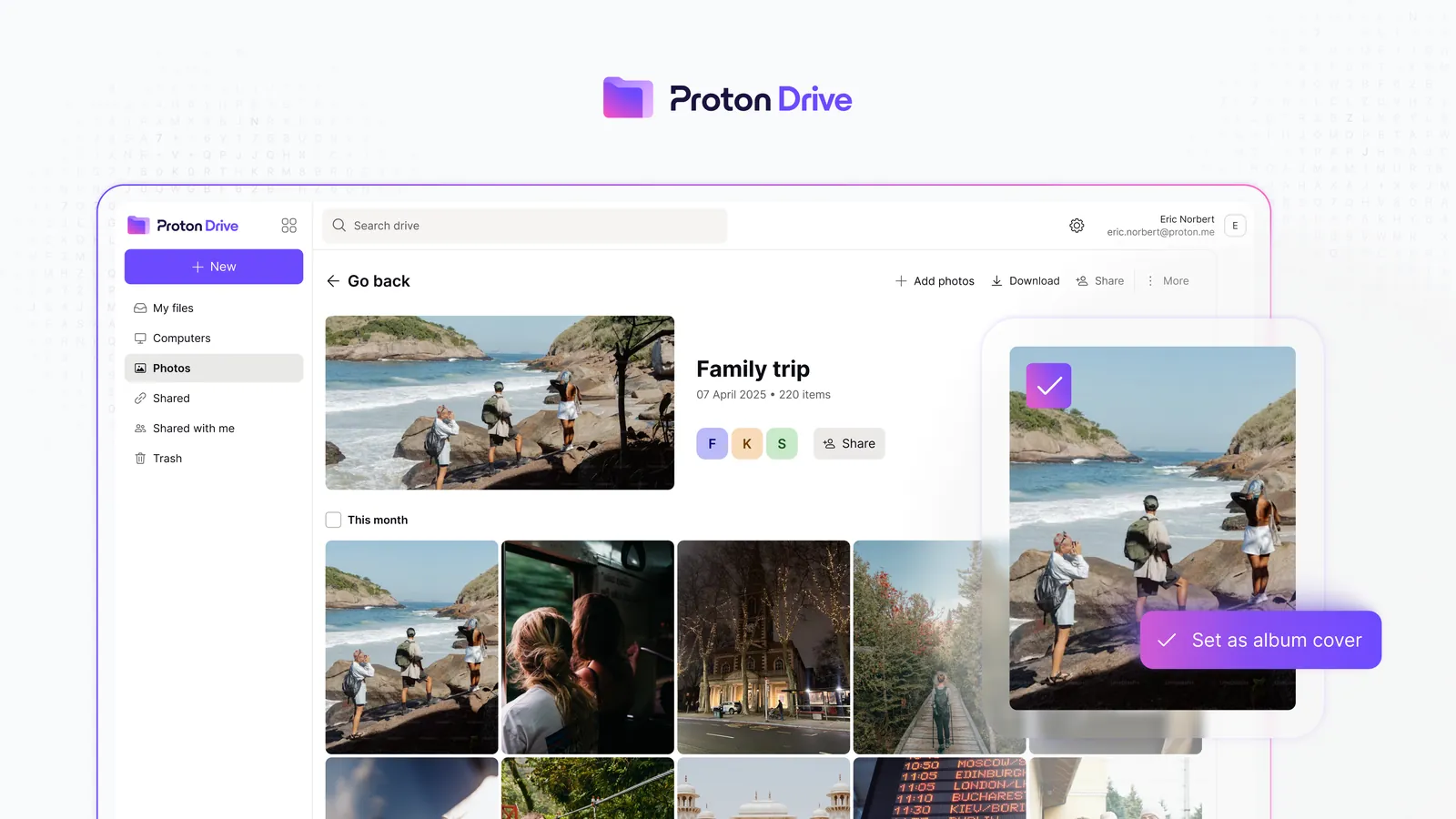
For new photos, turn on photo backup in the Proton Drive phone app. Proton’s support article says it backs up photos in original quality with end-to-end encryption, and warns that a large library can take a long time: several days on an iPhone for big collections, with the app kept open or running in the background. On Android only the Camera folder is backed up by default, and you can add other folders in the app’s settings. Once Proton has your library, switch off backup in Google Photos so new pictures stop going to both places. Our Proton Drive review covers the storage tiers and the desktop apps in more detail.
How do you get your passwords out of Chrome?
Passwords saved in Chrome live in Google Password Manager, and Proton Pass imports them from a .csv export. Proton’s Chrome import guide lays out the steps: in Chrome, open Passwords and autofill, then Google Password Manager, then Settings, and choose Export passwords and Download file. In the Proton Pass browser extension, open Settings, go to the Import tab, choose Chrome as the provider, and drop the .csv file in. The iOS app has the same option under Import to Proton Pass.
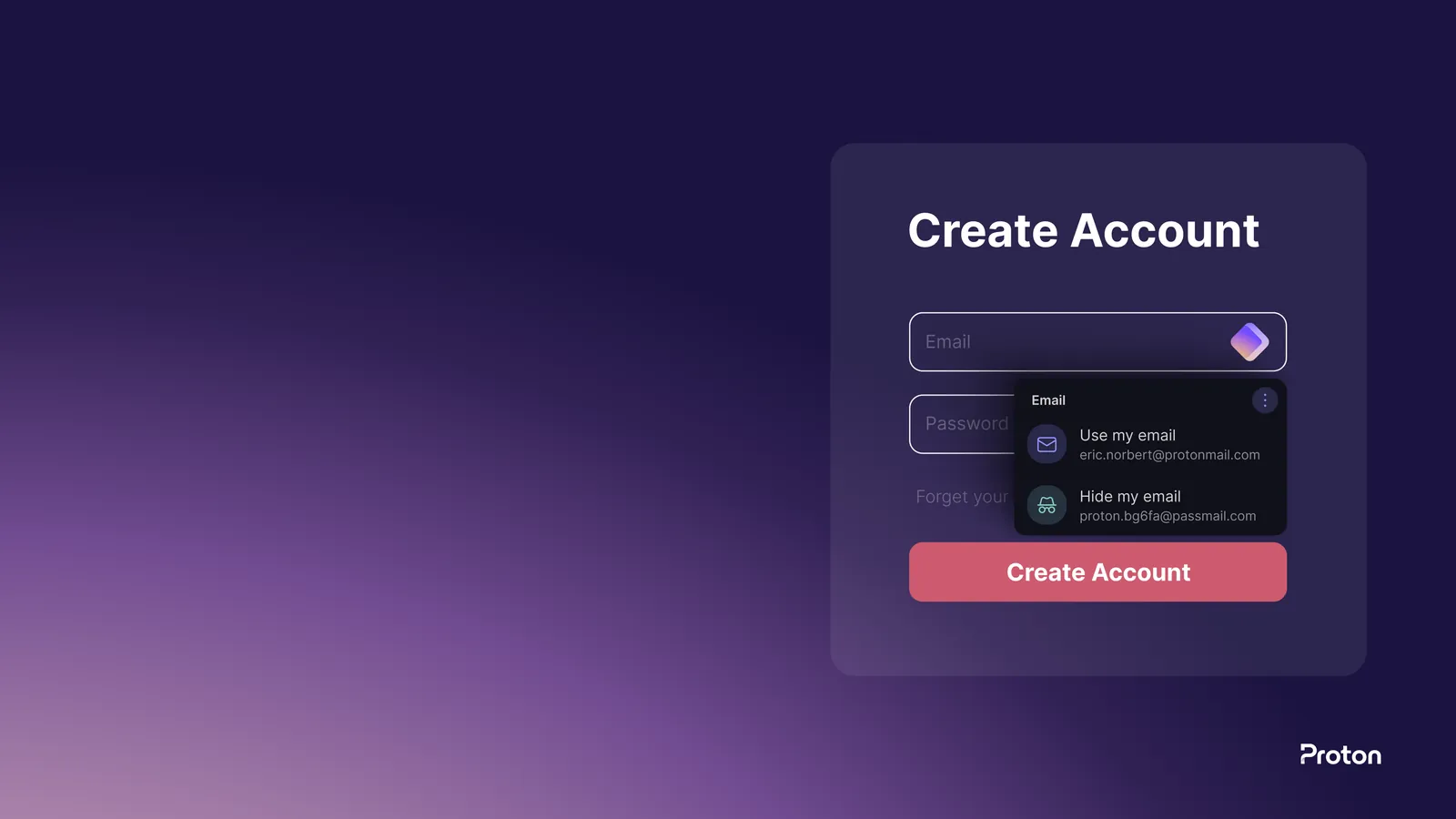
That exported file contains every password in plain text, so treat it carefully: import it, check the result, and then delete the file from your downloads folder and empty the trash. Once you are satisfied that everything arrived, Proton’s guide shows how to delete the data from Google Password Manager, and you should switch off Chrome’s own offer to save passwords so the two do not drift apart again.
Pass is also where the hide-my-email aliases live. The free plan includes 10 of them and Unlimited has no cap, according to Proton’s pricing pages. When you update an account’s email address during the move, it is the ideal moment to give that account its own alias instead of your main address, so a future breach of that shop or forum does not expose the address you use for everything. If you are still deciding on a password manager, our Proton Pass vs Bitwarden comparison weighs the two side by side.
What about Calendar, contacts and the VPN?
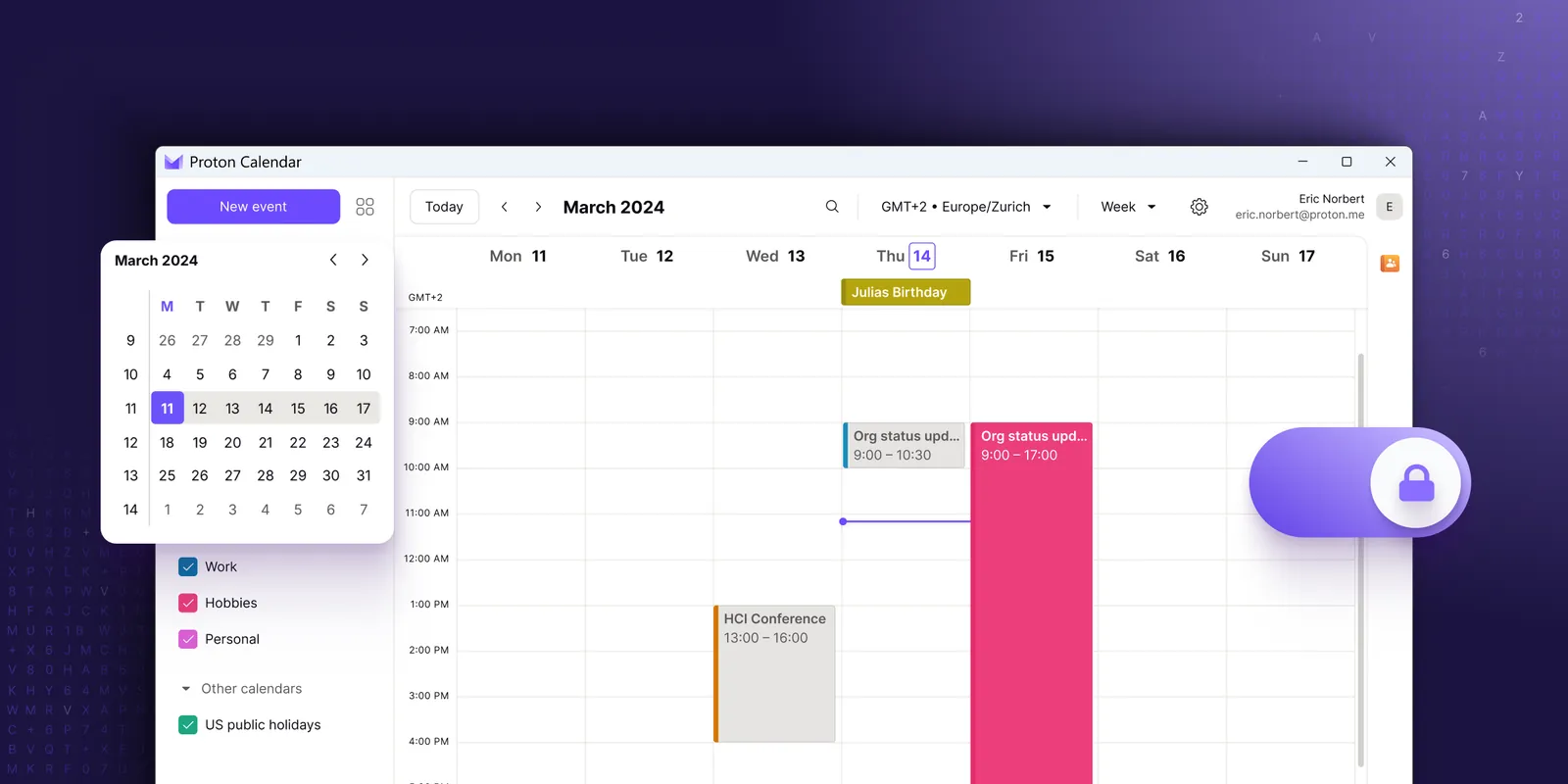
Google Calendar moves with Easy Switch, on the web or in the Android app. Proton’s calendar import guide states that this is a one-time import, not an ongoing sync, which is what you want for a move but means events added in Google afterwards will not follow. On the free plan you can have three personal calendars, and Proton’s guide notes that a free account is asked to merge an imported Google calendar into an existing Proton one; paid plans have 25 personal calendars. Contacts come over through the Gmail import, with Google’s contact groups added to your Proton contacts.
Proton VPN does not replace a Google product, but it belongs in the same move for a simple reason: once your mail, files and passwords are encrypted, the remaining exposure is the network you connect from, especially public Wi-Fi. The free plan covers one device on servers in 10 countries that Proton picks for you; VPN Plus and Unlimited cover 10 devices with a choice of more than 20,000 servers in more than 140 countries, according to Proton’s pricing pages. Our Proton VPN review covers speeds, streaming and the free tier’s limits.
If you used Gemini or another Google assistant, Proton also makes an AI assistant called Lumo, which Proton says keeps conversations confidential. It is a separate product with its own plans, and Unlimited includes only its free tier; our Proton Lumo review explains what that tier allows.
What does the whole switch cost?
A partial switch can cost nothing, and a full switch costs less than you might expect, because the one-app Plus plans add up quickly. Here are the US dollar prices from Proton’s pricing pages on October 11, 2026, priced one app at a time and as the Unlimited bundle.
| What you pay for | First year | Each year after | What it covers |
|---|---|---|---|
| Free plans only | $0 | $0 | Every app, with the free limits shown above |
| Mail Plus | $47.88 | $47.88 | Email and calendar, 15 GB shared with Drive |
| Mail Plus, Drive Plus and Pass Plus, priced separately | $131.64 | $131.64 | Email, 200 GB Drive, full Pass |
| Mail, Drive, Pass and VPN Plus, priced separately | $185.52 | $215.52 | All four, VPN Plus renews higher |
| Proton Unlimited, partner offer | $109.12 | $119.88 | All of the above, 500 GB |
| Proton Unlimited, yearly | $119.88 | $119.88 | All of the above, 500 GB |
| Proton Unlimited, two years | $191.76 for 24 months | $119.88 | All of the above, 500 GB |
The line that matters for a full move is the third one. Replacing Gmail, Drive and Photos, and your passwords already means three paid apps if you outgrow the free tiers, and those three priced separately come to $131.64 a year, $11.76 more than Unlimited’s standard $119.88, before the VPN is even counted. Add the VPN and the gap grows to $95.64 a year once VPN Plus has renewed at $83.88. Unlimited also gives you more than the parts: 500 GB of storage, 15 addresses, three custom domains and unlimited aliases. That is why it is the plan we recommend for anyone switching everything at once, and the partner offer makes the first year $109.12 before it renews at the standard Proton Unlimited price of $119.88 a year.
It is not the right buy for everyone. If email is the only thing you are moving, Mail Plus at $47.88 a year is enough, and Unlimited would cost $72 more for apps you would not open. If two people are switching, Proton Duo covers both with 2 TB of shared storage for $179.88 a year, and Proton Family covers six people with 3 TB for $287.88 a year on yearly billing. Our guide to whether Proton Unlimited is worth it works through every combination of apps, including the pairs where buying separately is cheaper.
Two billing notes. Monthly billing at $12.99 costs $155.88 over a year, so it only makes sense as a short test. And while every plan card shows a 30-day money-back guarantee, Proton’s pricing FAQ describes the refund as covering the unused portion of the service on a prorated basis, so testing on the free plans first is the cheaper way to find out whether the move suits you.
What will still tie you to Google?
Some parts of Google have no Proton replacement, and pretending otherwise sets you up for disappointment. Proton’s product list covers mail, calendar, storage, documents, spreadsheets, passwords, a VPN, a Bitcoin wallet, an authenticator, video meetings and the Lumo assistant. It does not include a search engine, maps, a video platform or a phone operating system, so those decisions are separate from this move.
- Your Android phone. An Android phone with Google services still signs in with a Google account for the Play Store. You can keep that account with almost nothing in it once your mail, photos and passwords have moved.
- YouTube and Maps. Both work without your Gmail inbox and your photo library attached to the same account, but they are still Google services.
- “Sign in with Google” buttons. Any site you log into through Google, rather than with a password, needs a new login method before you close the Google account. Your Pass import will not show these, because there is no password to export, so go through your most used sites and look for the Google sign-in option.
- Shared Google Docs and calendars. Files and calendars that other people own and share with you stay in their Google accounts. You can still open shared links, but you lose them if you delete your Google account.
The aim when you de-Google your life is rarely zero contact with Google. It is to take the things that describe your life, meaning your correspondence, your photos, your documents and your logins, out of an advertising company’s systems. Proton’s Gmail guide ends with the same advice: download your personal data from Google with Takeout before you make any final decision about the old account.
Every guide in this series
This page is the hub for our Proton coverage. Each guide below goes deeper into one app or one decision, and new guides are added here as they are published.
- Proton Mail review: what the encryption covers, what it costs and what it does not hide
- Proton VPN review: a free plan worth using, audited no-logs, and a renewal price to plan for
- Proton Pass vs Bitwarden: which password manager is worth paying for?
- Proton Drive review: private cloud storage, what it costs per gigabyte and where it falls short
- Proton Lumo review: a privacy-first AI assistant, and what its encryption really covers
- Proton VPN Free vs Plus: what you actually get when you upgrade
- Is Proton Unlimited worth it? The bundle vs buying Proton’s apps separately
- LastPass Alternatives: Where to Move Your Passwords After the Breaches
- How to Switch from Gmail to Proton Mail with Easy Switch
- Google Photos alternatives that keep your photos private
- Proton Black Friday 2026: Every Deal on VPN, Mail, Drive, Pass and Unlimited
Frequently asked questions
Can I de-Google my life for free?
Largely, yes. Proton Mail, Calendar, Drive, Pass and VPN all have free plans, and Easy Switch is included on the free plan. The limits are storage, with up to 1 GB for mail and up to 5 GB in Drive, one email address, 150 messages a day and one VPN device. A large photo library or a long Gmail archive is usually what pushes people onto a paid plan.
Will I lose my old Gmail emails?
No, as long as they fit in your Proton storage. Easy Switch first imports your most recent messages, up to 80 percent of your available storage, and then lets you import the rest through More import options. Re-running an import does not create duplicates, because Easy Switch skips messages it has already copied.
Can I keep receiving mail sent to my Gmail address?
Yes. The Gmail connection in Easy Switch forwards new Gmail messages to Proton Mail and lets you send from your Gmail address inside Proton. Free accounts can connect one Gmail account and paid plans up to three. Messages you send from that address to people who are not on Proton still pass through Google’s servers.
Does Proton import Google Photos albums?
The Windows desktop app does: its Import from Google Photos option sorts your Takeout export into albums and skips duplicates. The web app imports the photos into your timeline without recreating albums. Either way you start with a Google Takeout export of Google Photos, unzipped on your computer.
Can I import Google Docs into Proton Docs?
Your Drive files come across through Google Takeout and upload to Proton Drive with their folder structure intact. Proton Docs and Sheets are included on every plan, so you can keep writing and calculating inside Drive once the files are there. Check a few important documents after the upload, since formatting can shift when a file moves between editors.
Is Proton Unlimited worth it for a full switch?
For most people moving email, files and photos, and passwords together, yes. Those three paid apps priced separately cost $131.64 a year against $119.88 for Unlimited, which also adds the VPN, 500 GB of storage and unlimited aliases. If you only move email, Mail Plus at $47.88 a year is the better buy.
Should I delete my Google account afterwards?
Not straight away. Keep it until the mail still reaching Gmail has slowed to a trickle, every Takeout export is downloaded, and every site you used with Sign in with Google has a new login. Many people keep a near-empty Google account for an Android phone or YouTube and simply stop storing anything personal in it.
Is it worth leaving Google for Proton?
If the reason you want to de-Google your life is to get your email, files, photos and passwords out of an advertising company’s systems, Proton covers every one of those with a documented migration path: Easy Switch for Gmail, contacts and Calendar, Google Takeout plus the Drive apps for files and photos, and a .csv import for Chrome passwords. Start with passwords and email, keep the Gmail connection running while you update your accounts, and close the Google side last.
Use the free plans to test each step. When you are ready to move everything, Unlimited is the plan that makes sense: it costs less than three Plus plans priced separately, adds the VPN and 500 GB, and renews at the same $119.88 a year. People switching only their email should stay on Mail Plus, and couples should look at Duo. If the bundle fits, get Proton Unlimited for the whole move and work through this guide one service at a time.