

Proton Black Friday, until 30 November: 60% off Proton Mail Plus on the 12-month plan, $23.88 for the first 12 months.
After that it renews at $47.88 a year, the regular price. See every Proton Black Friday deal.
Short answer: The easiest way to switch from Gmail to Proton Mail is Proton’s built-in Easy Switch tool: it imports your recent Gmail messages, contacts and calendar, then keeps your Gmail address connected so new mail arrives in Proton while you move your accounts over one at a time.
- Start on Proton Free if your Gmail archive is small: Easy Switch and one Gmail connection are included.
- Pick Mail Plus if your archive is larger than 1 GB, or you want folders, filters and auto-forwarding without the free limits.
- Pick Proton Unlimited if Drive, Photos and your passwords are leaving Google too.
- Wait if your Gmail address is a Google Workspace account: Proton’s Gmail connection does not support it yet.
Mail Plus: $4.99 a month on monthly billing, or $47.88 a year ($3.99 a month), renewing at $47.88 a year. Proton Unlimited: $119.88 a year. Free plan: yes, up to 1 GB of mail storage, Easy Switch included. Prices in US dollars, checked October 11, 2026.
Table of contents
What do you need before you start?
You need a Proton account, your Gmail login, and a realistic idea of how much mail you want to bring with you. Everything else happens inside Proton Mail’s settings. This guide follows Proton’s own Gmail migration guide as it read on October 11, 2026, adds the practical decisions it leaves to you, and explains the limits that catch people out. It describes the steps from Proton’s documentation; it is not a diary of someone’s personal switch.
If Gmail is only one of several Google services you are leaving, start with our hub guide on how to de-Google your life, which puts email in context with Drive, Photos, Calendar and passwords and suggests an order for the whole move. This page goes deep on the email part.
The free plan is enough to try every step below, but its limits decide how far you get. Here is what matters for a Gmail migration, from Proton’s pricing table:
| Limit that affects the move | Proton Free | Mail Plus | Proton Unlimited |
|---|---|---|---|
| Mail storage | Up to 1 GB | 15 GB, shared with Drive | 500 GB, shared with Drive |
| Easy Switch import assistant | Included | Included | Included |
| Gmail accounts you can connect | 1 | Up to 3 | Up to 3 |
| Proton email addresses | 1 | 10 | 15 |
| Folders and labels | 3 of each | Unlimited | Unlimited |
| Custom filters | 1 | Unlimited | Unlimited |
| Messages you can send per day | 150 | Unlimited | Unlimited |
| Auto-forwarding out of Proton | Not included | Included | Included |
| Email client support (IMAP/SMTP) | Not included | Included | Included |
Two rows deserve attention before you start. Storage decides how much of your Gmail history fits, and Gmail users with a decade of attachments often have several gigabytes. Folders and labels decide how much of your Gmail organisation survives: Gmail labels become Proton folders or labels on import, and the free plan allows three of each, so a heavily labelled Gmail account will need either a paid plan or some tidying first.
Step 1: How does Easy Switch import your Gmail?
Easy Switch connects to your Google account through Google’s own sign-in and permission screen, the standard OAuth process, rather than asking Proton to store your Gmail password. Proton’s guide calls this the recommended setup, because it does the import and the connection in one go. The steps:
- Sign in to Proton Mail on the web and open Settings.
- Go to Import via Easy Switch and select Google.
- Click Connect to Gmail. Before you do, you can untick the checkbox that imports your emails if you only want the connection; it is ticked by default.
- On Google’s permission screen, click Select all and then Continue. Proton’s guide warns that if you do not grant every requested permission, the setup causes an error later.
- Wait. Easy Switch starts importing automatically and runs in the background.
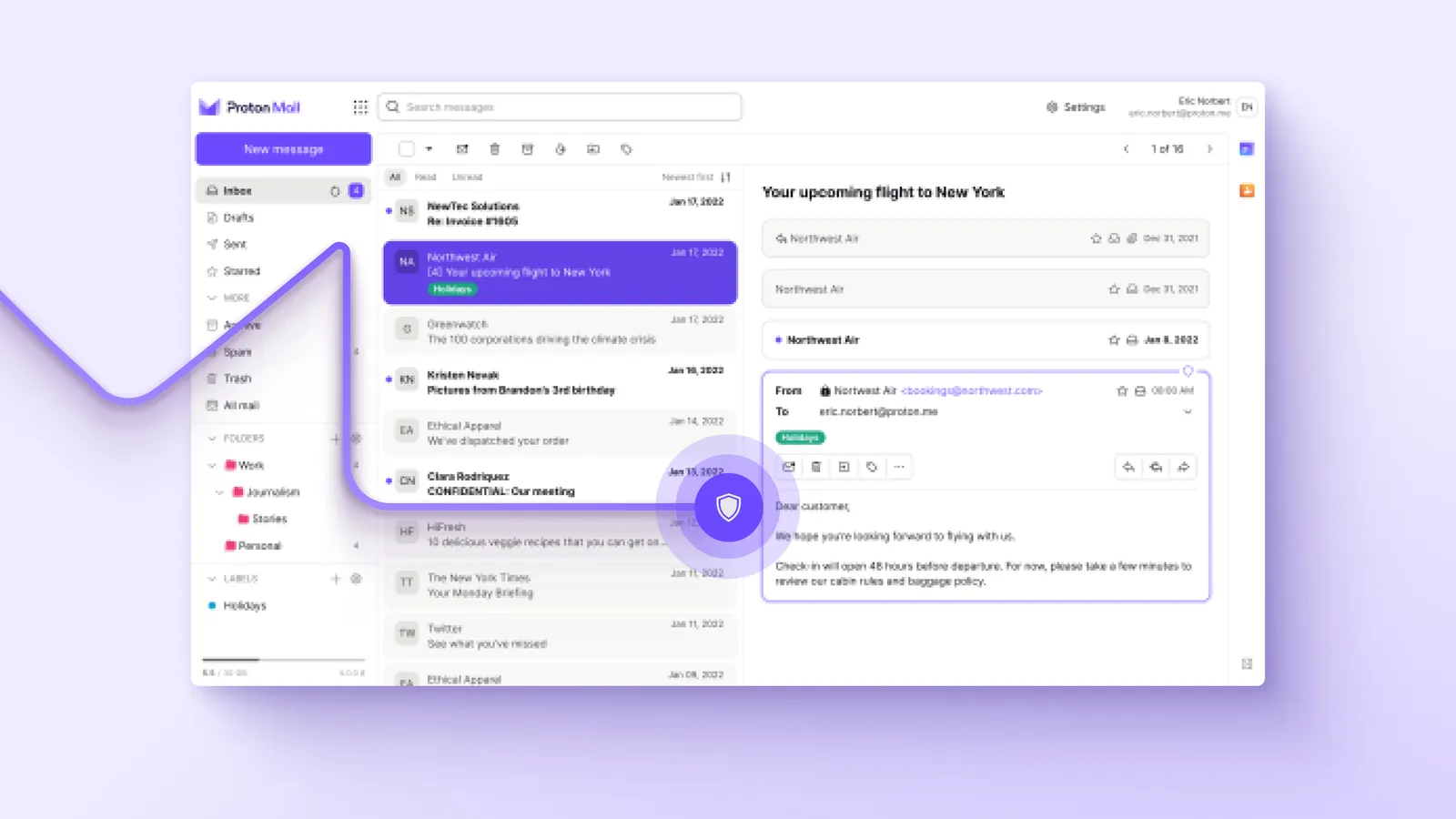
What arrives first is not your whole mailbox. By default, Easy Switch imports your most recent Gmail messages, up to 80 percent of your available Proton storage, and you cannot change that during the initial setup. Proton’s reasoning is sensible: it leaves room for new mail, so your inbox does not fill to the brim on day one. On the free plan, with up to 1 GB of mail storage, that means roughly the last 800 MB of your Gmail. On Mail Plus, with 15 GB shared between Mail and Drive, it is up to 12 GB, assuming Drive is empty.
Attachments come across with the messages; Proton’s guide says Easy Switch migrates “your emails (including attachments), calendars, and contacts”. Contacts are imported as they are, up to 10,000, and Google’s contact groups are added to your Proton contacts. Calendars arrive as a new Proton calendar by default, or merged into an existing one if you choose.
Step 2: How do you keep receiving mail at your Gmail address?
The Gmail connection does it. Once Easy Switch is connected, new mail sent to your Gmail address appears in Proton Mail, and you can send from your Gmail address inside Proton without opening Gmail. This is what makes the switch gradual: friends, banks and shops can keep writing to the old address while you update them one by one.
Proton is upfront about what the connection does and does not protect. Mail you send from the connected Gmail address to other Proton users, including people whose own Gmail is connected to Proton, is end-to-end encrypted. Mail you send from it to anyone else goes out through Gmail’s servers without end-to-end encryption, is readable by Google, and also appears in your Gmail Sent folder. So the connection is a transition tool. Privacy improves fully once people write to your Proton address instead.
You may also come across Proton’s older Gmail forwarding option. Proton’s forwarding article describes it as a legacy feature that is gradually being replaced by the Gmail connection, and the differences are worth knowing if you set it up years ago:
| Feature | Gmail connection (current) | Gmail forwarding (legacy) |
|---|---|---|
| Receive new Gmail messages in Proton | Yes | Yes, from Gmail’s Inbox folder only |
| Send from your Gmail address inside Proton | Yes | No, it is one way |
| Imports existing mail | Yes, as part of the recommended setup | No |
| Mail that skips Gmail’s inbox through a filter | Not described as a limit | Not forwarded |
| How many Gmail accounts | 1 on Free, up to 3 on paid plans | Counts toward the same limit |
If you already use the legacy forwarding, Proton’s guide says you can upgrade it to a Gmail connection by running the recommended setup, and Easy Switch skips the import automatically.
Step 3: How do you bring over the rest of your history?
Once the first import finishes, go back to Import via Easy Switch and choose More import options. Pick Google, choose what to import (emails, contacts, calendars), grant the permissions again if asked, and review the summary before clicking Start import. Under Customize you get three useful controls for email:
- A label for imported mail. Handy if you plan to import more than one old account and want to tell them apart.
- A time range. All messages, or the last 1, 3, 6 or 12 months.
- Folders to exclude. Untick anything you do not need, such as old promotions. Unticking a parent folder unticks its subfolders too.
Running the same import again is safe. Proton says Easy Switch detects emails that have already been imported and skips them, so you will not end up with duplicates if an import is interrupted and you start it over. If your Gmail labels include subfolders that do not exist in Proton, Easy Switch creates them.
Easy Switch will ask you to customise the import before continuing in a few situations: a folder name longer than 100 characters, more than 2,000 folders in the old account, or a Gmail label that clashes with an existing Proton folder or label. Proton’s example is a Gmail label called “Admin” meeting Proton’s own folder of the same name. Renaming the label in Gmail before importing is usually the quickest fix.
And if you decide you did not want the history after all, you can click Undo import next to the Gmail account under Imports. That removes the imported emails and folders but keeps the Gmail connection active, which is also how Proton suggests starting with a clean inbox.
Step 4: How do you move your accounts over gradually?
This is the slow part, and the part no tool does for you: changing the email address on every account that uses your Gmail address. The Gmail connection buys you time, so there is no need to rush. Proton’s guide suggests starting with the most important accounts, such as banking, healthcare, government services and anything tied to a payment method. A workable plan looks like this:
- Week one: the critical accounts. Bank, card issuers, tax and government portals, health providers, mobile carrier, and your Apple ID or Microsoft account. These are the accounts where a missed security email causes real trouble.
- Weeks two to four: daily services. Shops you buy from, delivery services, streaming subscriptions, cloud apps you log into. Each time an email reaches your Proton inbox through the Gmail connection, ask whether that sender should have your new address, and update it there and then.
- Month two: newsletters and the long tail. Proton’s guide points to the Newsletters view in Proton Mail as a way to organise subscriptions and spot accounts you may have missed. Unsubscribe from the ones you no longer read instead of moving them.
- Month three onwards: people. Send a short note to friends, family and colleagues with your new address. When they reply from your Proton address, the conversation is end-to-end encrypted if they are on Proton too.
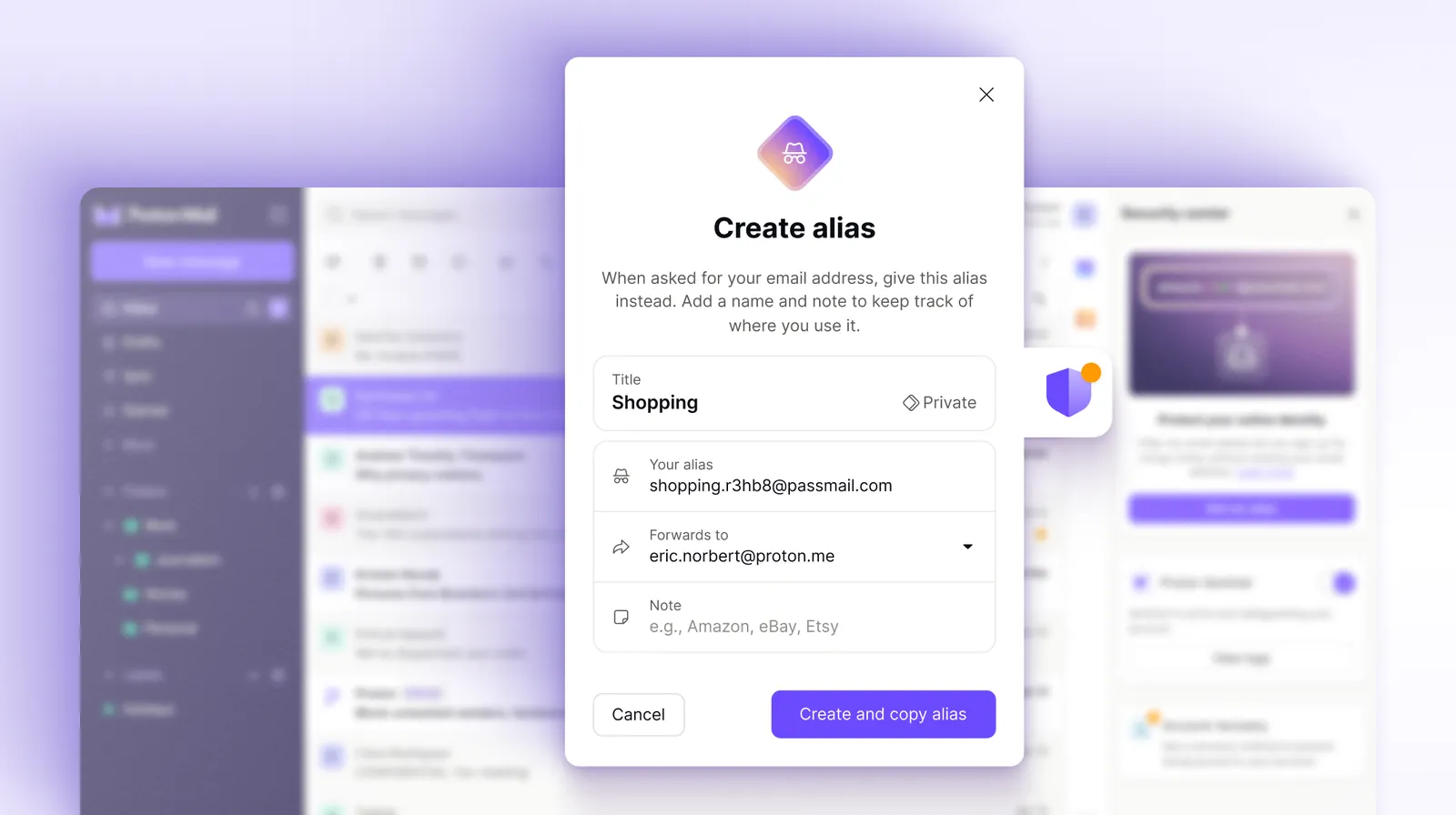
While you are changing addresses, consider giving each service its own hide-my-email alias instead of your main Proton address. The free plan includes 10 aliases and Mail Plus 10, while Unlimited has no cap. An alias forwards to your inbox, and if one shop leaks or sells it, you switch that alias off without touching anything else. Our Proton Pass vs Bitwarden comparison covers how Proton Pass creates them while you fill in sign-up forms.
When the trickle of mail to your Gmail address has nearly stopped, you can decide what to do with the old account. Proton’s guide recommends downloading a copy of your Google data with Google Takeout first. Many people keep the Gmail account open but empty for a while, with the connection still running, so that the occasional forgotten sender still reaches them.
What works differently from Gmail?
Proton Mail covers the same daily jobs as Gmail, but a few things work differently and are worth knowing in advance, so they do not feel like bugs.
Encryption depends on the recipient
Email between Proton users is end-to-end encrypted automatically. Email to a Gmail or Outlook address is not end-to-end encrypted unless you use Proton’s password-protected email feature, which Proton’s pricing table lists on every plan, free included. That is not a Proton weakness so much as how email works: the other side’s provider can read what reaches it.
Folders and labels both exist
Gmail only has labels. Proton Mail has folders, where a message lives in one place, and labels, where a message can carry several. Imported Gmail labels are turned into Proton folders or labels, and on the free plan you are limited to three of each, so a long label list will not fit without an upgrade or some merging.
Filters and sending limits
The free plan allows one custom filter and 150 sent messages a day. Mail Plus removes both limits. If you rely on Gmail filters to sort newsletters, receipts and notifications, plan to recreate them in Proton’s settings, since Easy Switch moves your mail, not your rules.
Attachments and apps
Attachments are limited to 25 MB on every plan. Proton Mail has its own apps for iOS and Android, and a desktop app that is included with Mail Plus and offered as a 14-day free trial on the free plan. If you prefer Outlook, Thunderbird or Apple Mail, email client support through IMAP and SMTP is included on paid plans, not on Free. Our Proton Mail review covers the apps and the everyday experience in more depth.
What goes wrong, and how do you fix it?
Most failed migrations come down to one of a handful of causes, all documented in Proton’s guides.
- An error after connecting. Usually a permission was left unticked on Google’s screen. Remove the connection and run the setup again, this time with Select all.
- Only part of your mail arrived. That is the 80 percent storage rule doing its job. Free space or upgrade, then use More import options to bring over the rest.
- Your work address will not connect. The Gmail connection supports individual Google accounts only. Google Workspace accounts and custom domain addresses are not supported, and Proton points Workspace users to its business migration guide instead.
- Your Gmail address is already your Proton login. If you joined Proton through Proton VPN or Proton Pass using your Gmail address, Proton says you currently cannot set up a Gmail connection with that same Gmail account.
- Some mail is not being forwarded (legacy forwarding). The old forwarding only takes mail from Gmail’s Inbox folder, so any Gmail filter set to skip the inbox stops it. Messages you send to yourself are not forwarded either.
- Actions do not sync back. Deleting or moving a forwarded message in Proton does not change it in Gmail. Treat Gmail as an archive you no longer manage.
You can check the status of the connection at any time under Import via Easy Switch, or under Identity and addresses, which is also where you manage it.
Which Proton Mail plan do you need?
The plan follows from how much you are bringing and how many Google services you are leaving. All prices are in US dollars from Proton’s pricing pages on October 11, 2026.
| Plan | Price | Renews at | Best for |
|---|---|---|---|
| Proton Free | $0 | $0 | Testing the move, small archives |
| Mail Plus, monthly | $4.99 a month | $4.99 a month | A short trial with paid limits |
| Mail Plus, yearly | $47.88 a year ($3.99 a month) | $47.88 a year | Leaving Gmail only |
| Proton Unlimited, yearly | $119.88 a year ($9.99 a month) | $119.88 a year | Leaving Gmail, Drive, Photos and passwords together |
| Proton Duo, yearly | $179.88 a year | $179.88 a year | Two people switching together |
For most people who want to switch from Gmail to Proton Mail and nothing else, Mail Plus on yearly billing is the plan: 15 GB covers most Gmail archives, 10 addresses and one custom domain give you room to grow, and the free plan’s folder, filter and sending limits disappear. Paying monthly costs $59.88 over a year, $12 more than yearly, so it only makes sense if you want a short test beyond the free plan. If you compare Proton Mail plans and notice that Unlimited costs $72 a year more than Mail Plus, remember what that buys: 500 GB, the VPN, the full Proton Pass and Proton Drive. Our analysis of whether Proton Unlimited is worth it shows where the bundle pays off.
Every plan card shows a 30-day money-back guarantee, which Proton’s pricing FAQ describes as a prorated refund of the unused portion. Since Easy Switch works on the free plan, the cheapest approach is to run the import there first, see how much of your mail fits, and upgrade only if it does not.
Frequently asked questions
Is Easy Switch free?
Yes. Proton’s pricing table lists the Easy Switch import assistant on Proton Free, Mail Plus and Unlimited. On the free plan you can connect one Gmail account; paid plans allow up to three. What limits a free migration is storage: the free plan has up to 1 GB for mail, and the first import fills up to 80 percent of it.
How long does the import take?
Proton does not publish a fixed time, because it depends on how much mail you have. The import runs in the background on Proton’s side, so you can close the browser and keep using your computer. Large archives can take a while; you can check progress under Import via Easy Switch in settings.
Will my Gmail labels come across?
Yes, Easy Switch brings your labels and folder structure over and creates missing subfolders. It asks you to customise the import if a label clashes with a Proton folder name, if a name exceeds 100 characters, or if you have more than 2,000 folders. On the free plan, only three folders and three labels are allowed.
Can I still send email from my Gmail address?
Yes, with the Gmail connection. You can send from your Gmail address inside Proton Mail. Messages to Proton users are end-to-end encrypted; messages to anyone else go through Gmail’s servers, are readable by Google and appear in your Gmail Sent folder.
Does the switch work with Google Workspace?
Not through the Gmail connection described here. Proton’s guide says it covers individual Google accounts, and Google Workspace accounts or custom domain addresses are not supported at this time. Proton has a separate Easy Switch guide for business migrations.
Can I undo the import?
Yes. Under Import via Easy Switch, click Undo import next to your Gmail account. That removes the imported emails and folders but keeps the Gmail connection active, so new mail keeps arriving. It is also how Proton suggests starting fresh with an empty inbox.
Should I delete my Gmail account afterwards?
Not immediately. Keep it while mail still arrives there, download your Google data with Takeout, and make sure no account still sends security codes to the Gmail address. Many people keep a quiet Gmail account for months before deciding.
Should you make the switch now?
If you have been putting it off because moving email feels like an all-or-nothing project, Easy Switch removes most of that risk. It imports your recent mail, contacts and calendar, keeps your Gmail address working inside Proton, and lets you undo the import without losing the connection. The real work is updating your accounts, and the connection gives you as long as you need for that.
Start on the free plan to see how much of your mail fits. If you want to switch from Gmail to Proton Mail properly, with your full archive, your labels and no daily sending cap, Mail Plus at $47.88 a year is the right plan; if Drive, Photos and passwords are leaving Google too, go straight to Unlimited. Do not switch yet if your address is a Google Workspace account. When you are ready, pick the Proton Mail plan that fits your archive and run the import tonight.