



Proton Black Friday, until 30 November: 50% off Proton Unlimited on the 12-month plan, $77.88 for the first 12 months.
After that it renews at $119.88 a year, the regular price. See every Proton Black Friday deal.
Short answer: This privacy checklist for parents comes down to five habits: post fewer identifying details, strip location data from photos, give apps and games an alias instead of the family email address, lock down school records and your child’s credit file, and keep family logins in a shared password manager instead of a notebook or a reused password.
- Pick Proton Unlimited if one parent runs the family’s digital admin and wants unlimited email aliases, 500 GB for private photo backup and a password manager in one subscription.
- Pick Proton Family if several family members need their own accounts: up to six users share 3 TB.
- Pick Pass Family if logins and aliases are the gap and your photos already live somewhere you trust.
- Skip paid plans if you only want the habits: most of this checklist costs nothing, and Proton’s free plan already includes 10 aliases and 5 GB of Drive storage.
Proton Unlimited: $12.99/mo monthly, or $119.88/yr ($9.99/mo) renewing at $119.88/yr. Partner offer seen on October 11, 2026: $109.12 for the first 12 months, then renews at $119.88 every 12 months. Free plan: yes, 10 aliases and 5 GB of Drive storage. Prices checked October 11, 2026.
Table of contents
Why does a child’s digital footprint matter so early?
A child’s digital footprint starts long before their first phone. It starts with a birth announcement, a first day of school photo with the school badge in view, a birthday post that gives away a full date of birth, and a sign-up form for a reading app that asks for a parent’s email address. None of these feel risky on their own. Together they add up to a profile that will still be online when the child applies for a student loan, a job or a credit card.
The worry is not abstract. In 2018 the BBC reported a forecast from Barclays that “sharenting”, parents sharing personal information about their children on social media, would account for two-thirds of identity fraud facing young people by 2030, with 7.4 million incidents a year and a cost of £667m a year. That is a bank’s forecast, not a measured result, but the list of details it named is the useful part: names, ages and dates of birth from birthday messages, home addresses, place of birth, a mother’s maiden name, schools, the names of pets, favourite sports teams and photographs. Several of those are classic answers to security questions.
The second risk is identity theft that targets the child directly. The US Federal Trade Commission’s guide to protecting your child from identity theft lists the warning signs: a call about an overdue bill on an account you never opened, a letter from the IRS about unpaid income tax in your child’s name, a student loan denied because of bad credit, or government benefits refused because someone else is already using your child’s Social Security number. A child’s clean credit file is attractive precisely because nobody checks it for years.
The third is the data that apps and websites collect on their own. In the US, the Children’s Online Privacy Protection Act (COPPA) protects children under 13, and the FTC’s COPPA guidance says covered operators must obtain verifiable parental consent, with limited exceptions, before collecting personal information online from children. The rule’s definition of personal information is broader than most parents expect: it includes a photograph, video or audio file that contains a child’s image or voice, geolocation precise enough to identify a street and a city or town, and a persistent identifier that can recognise a user over time. The FTC notes that the COPPA Rule was amended on April 22, 2025. The law puts obligations on companies; this checklist is about the part parents control.
This guide is written by TruePick Editorial from public guidance (the FTC, the UK government’s summary of the ICO Children’s Code, Apple’s personal safety guide) and from Proton’s own documentation. It is not legal advice, and it does not reproduce any vendor’s checklist. Where a Proton feature helps, we say which one and what it costs. If you are replacing Google’s services across the board, our guide to de-Googling your life covers the wider move.
The checklist at a glance
Here is the whole privacy checklist for parents in one table. Each row is expanded below, and most rows cost nothing but a few minutes of attention.
| Area | What to do | Free way to do it | Where Proton helps |
|---|---|---|---|
| Social posts | Leave out full birth dates, school names, home street and uniforms with badges | Post less, post later, use private audiences | Not needed |
| Photo location | Remove location data before sharing, stop the camera tagging new photos | Phone settings and the share sheet | Not needed |
| Photo storage | Back up family photos to storage that the provider cannot read | Proton Drive free plan, 5 GB | Drive photo backup, 500 GB on Unlimited |
| Sharing photos | Share a private link with a password and an expiry date, not a public post | Drive sharing links | Same, with more storage |
| Sign-up emails | Give apps, games and newsletters an alias, not the family address | 10 aliases on Proton Free | Unlimited aliases on Pass Plus and Unlimited |
| Passwords | One unique password per account, stored in a shared vault | Proton Pass Free, 2 vaults | Pass Family for six people |
| School forms | Question requests for a Social Security number | The four FTC questions below | Not needed |
| Credit file | Freeze a child’s credit before anyone else uses it | Free for children under 16 in the US | Not needed |
| App settings | Check that location and profiling are off and the profile is private | The app’s own settings | Not needed |
| Teenagers | Hand over accounts, passwords and aliases as they become independent | A conversation | Moving items between Pass vaults |
Notice how many rows say “not needed”. A paid privacy suite fixes three or four of these problems well, but the biggest gains come from habits. The sections below cover both, in the order most families will tackle them.
How do you share family photos without oversharing?
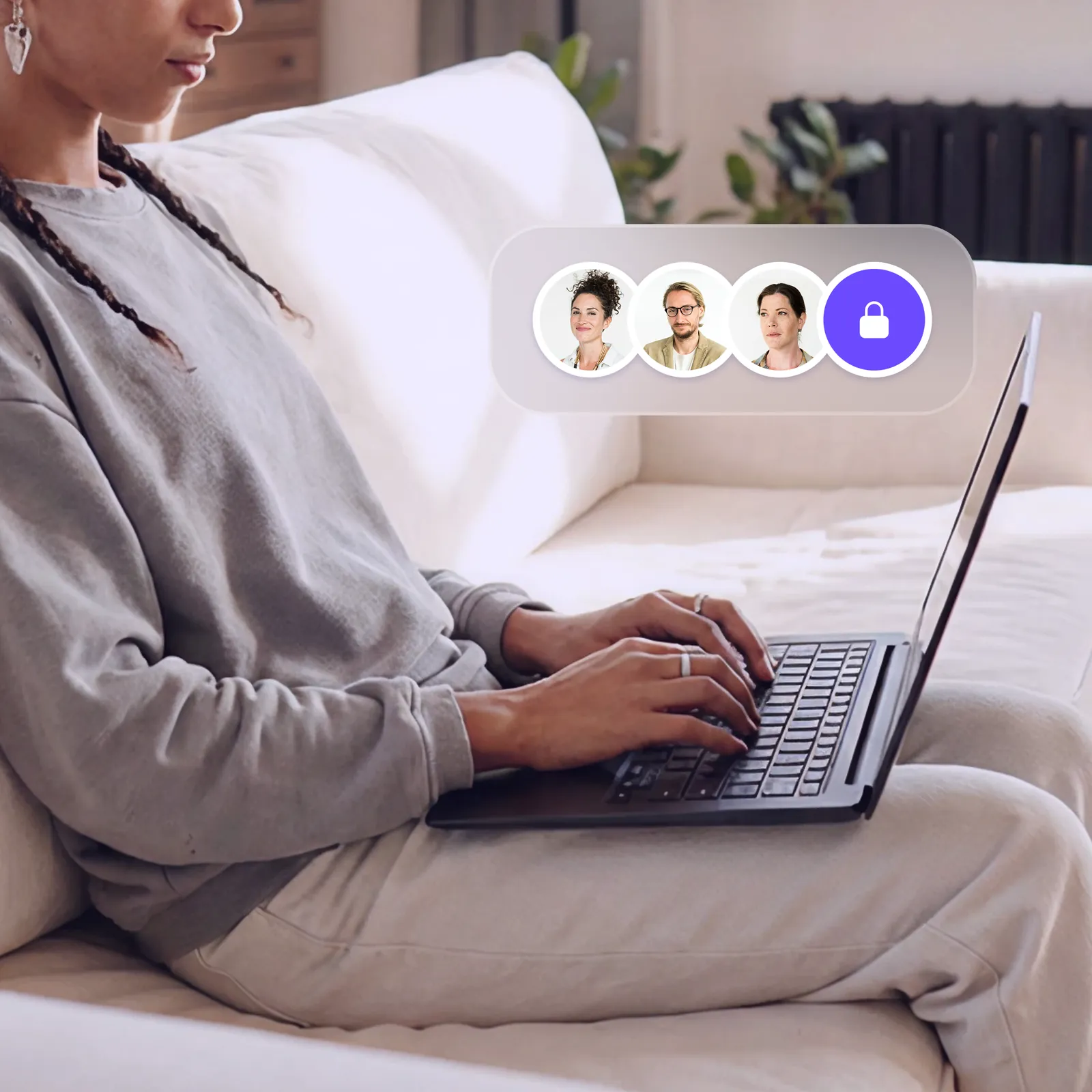
Share fewer identifying details, remove location data, and send photos to the people who want them instead of to everyone who follows you. Photos are the biggest single part of most children’s footprint, and three separate problems hide in them.
What the picture itself gives away
The content of a photo often says more than the caption. A school uniform with a crest, a house number behind a child on the doorstep, a car number plate, a sports kit with a club name, a birthday cake with the age written in icing. Several of these map straight onto the details in the Barclays list: schools, home addresses, ages and dates of birth. Before posting, look at the background as a stranger would. Crop, blur or choose another shot. A good rule for a family group chat is the same as for a public post, because chats get screenshotted and forwarded.
What the file carries that you cannot see
Phone cameras can store the location where each photo was taken inside the file. Apple’s personal safety guide explains how to manage location metadata in photos: when you share from the Photos app, tap Options in the share sheet and turn off Location before you send, and to stop new photos being tagged, set the Camera app’s access under Location Services to Never. Android phones and most camera apps have comparable settings; check your device’s help pages, because menu names vary by manufacturer. Turning off location tagging for the camera is the single setting that protects every future photo at once.
Where the originals live
The third problem is storage. Many families back up every photo to a cloud service that can read and analyse them. Proton Drive is one alternative: its photo storage page says the Drive apps for iOS and Android can back up your photos automatically (go to Photos and tap Turn on backup), and that encryption happens on your device before files are sent to Proton’s servers. Proton also says on its Unlimited offer page that Drive helps “prevent your photos from being used to train AI”; that is Proton’s own claim about its service, and it rests on the end-to-end encryption described in its documentation.
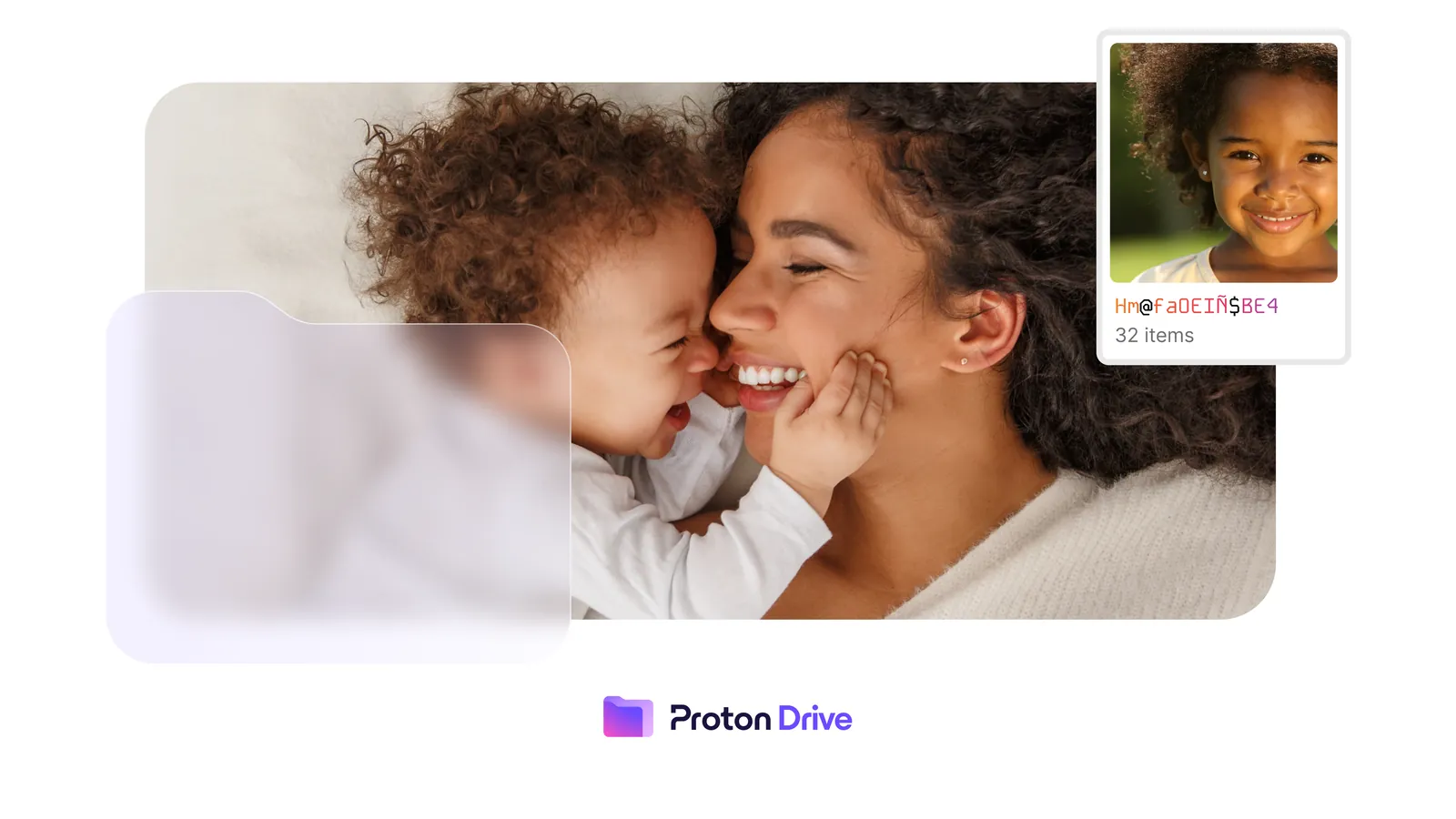
Sharing works through links rather than public posts. Proton’s photo page says you can share photos with secure links, set passwords or expiry dates, and revoke access at any time, and you can organise them into albums for a trip or a school year. For grandparents, that is a better pattern than a public social post: a private album link with an expiry date reaches the people who care and nobody else. The free plan includes 5 GB of storage, which Proton estimates at more than 1,000 photos based on an average file size of 4 MB. A busy family will outgrow that within a year or two; Drive Plus offers 200 GB and Proton Unlimited 500 GB. Our Google Photos alternatives guide compares Drive with other private photo services, and our Proton Drive review covers the app in depth.
Which email address should a child’s apps get?
Give every app, game, school platform and newsletter its own email alias, and keep your real address for the people you actually correspond with. Children’s apps generate a surprising amount of sign-up mail, and every sign-up is one more database that can leak your address.
How aliases work
Proton’s support article on hide-my-email aliases describes the mechanism plainly. When you sign up somewhere, you enter a randomised alias address instead of your own. Mail sent to it goes to Proton’s servers first and is then forwarded to your mailbox, so the sender never sees your personal address. If you reply, Proton sends the reply from the alias. When an app starts sending too much, or turns up in a breach, you disable that one alias and the mail stops; you can turn it back on later if you need it.
Proton also points out a security benefit: with a different address for every account, credential stuffing, where attackers try a leaked email and password pair on other sites, becomes much harder. For a family, that means a breach at a children’s game cannot be used to try the same login on the parent’s bank or email.
A practical setup for parents
- One alias per service. A maths app, a reading app, a games console account and the swimming club each get their own. Name each alias item after the service in Proton Pass so you know which is which.
- A stable alias for the school. School systems must reach you reliably, so give them an alias you never disable, or your real address if the school requires it.
- A shopping alias per shop. One-off purchases are where marketing mail piles up fastest.
- A record of what each alias is for. Pass stores the alias with a note and, if you like, the account’s password in the same item.
The free tier is enough to try this: Proton’s support article says you can create up to 10 aliases with Proton Free and Mail Plus, and that Pass Plus and Proton Unlimited remove the limit. A family that gives each service its own address will pass 10 quickly, which is one of the clearer reasons to pay. Proton Unlimited removes the cap and adds the photo storage covered above and the password vaults covered next, so compare the Proton Unlimited plans once you know how many services your family actually uses.
How should a family handle passwords?
Use one unique, generated password per account and keep them in a shared password manager, not on a sticky note or in a reused family password. Children’s accounts multiply fast: school platforms, consoles, streaming profiles, music lessons, the sports club’s booking system. Parents end up as the password desk for all of them.
Proton Pass handles this with vaults. The free plan includes 2 vaults and lets you share a vault with 2 other people; Pass Plus raises that to 50 vaults and sharing with 10 others. A sensible structure is one vault for the parents’ own accounts, one shared family vault for things everyone uses (the streaming service, the Wi-Fi password, the console), and one vault per child that you hand over when they are ready. Proton Pass lets you move an item to another vault, so the handover is a few taps rather than a reset of every account.
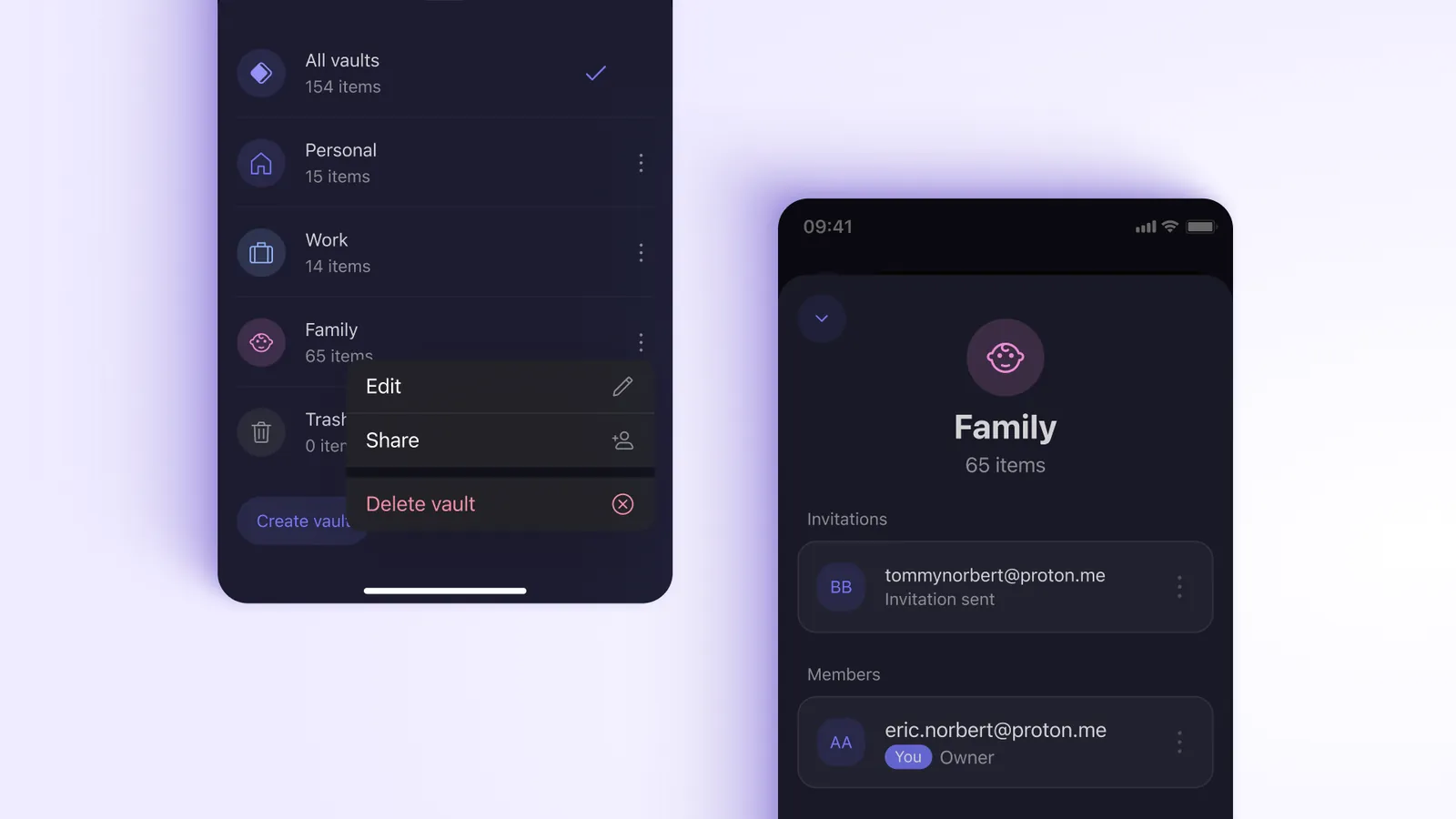
Pass Family is Proton’s household option for passwords alone: Proton describes it as a six-user plan with six Pass Plus accounts and an admin panel for the family. Its page highlights shared vaults, alerts for weak or reused passwords and Dark Web Monitoring, which warns when personal information turns up in a leak. Pass Plus also includes Emergency Access, where you name the people you trust as emergency contacts for your vault. For parents, that is a quiet but important feature: the family’s logins should not disappear with one person’s phone.
If passwords are your family’s main problem, our guide to the best password manager for families compares Pass Family with other household plans.
How do you protect school records and your child’s credit?
Ask why any school, club or app needs your child’s most sensitive identifiers, and in the US, freeze your child’s credit file so it cannot be used to open accounts. These two steps protect against the kind of identity theft that can go unnoticed for a decade.
Four questions for any form that asks for a Social Security number
The FTC suggests asking four questions when a school asks for your child’s Social Security number: why do you need it, how will you protect it, can you use a different identifier, and can you use just the last four digits? The same questions work for sports clubs, summer camps, tutoring services and medical forms that ask for more than they need. Often the honest answer is that the field is on the form out of habit.
A credit freeze for children
According to the FTC, if your child is under 16 you can request a free credit freeze, and minors who are 16 or 17 can request and remove a freeze themselves. The freeze stays in place until you ask the credit bureaus to remove it. The FTC also says a child under 18 generally will not have a credit report; to check, you contact the three credit bureaus and ask for a manual search on your child’s Social Security number, and you may need to provide identification, proof of address, the child’s birth certificate and Social Security card.
Treat the warning signs listed earlier as triggers to check immediately: unexpected bills, tax letters or credit refusals in your child’s name. Outside the US, the mechanisms differ, so check what your country’s credit agencies offer for minors; the principle of locking an unused file is the same.
Keep the paperwork private too
Scans of birth certificates, passports and medical letters often end up in an email attachment or a general cloud folder. Keep them in encrypted storage instead. A Drive folder for identity documents, shared only with the other parent, is a sensible home; Proton’s sharing links can carry a password and an expiry date if you need to send a copy to a school office once.
What should a child-friendly app look like?
A child-friendly app is private by default: location off, profiling off, and a profile that only approved people can see. You can use the UK’s Age Appropriate Design Code, known as the Children’s Code, as a yardstick even if you live elsewhere.
The UK government’s guidance on child online safety summarises the ICO’s code, which sets fifteen standards for online services likely to be accessed by children. Three of them are easy for parents to check from the settings screen: settings must be “high privacy” by default, geolocation and profiling should be switched off by default, and if a service lets parents or carers monitor a child’s activity or location, it should show the child a sign that monitoring is active.
That last standard is worth borrowing as a family rule. Monitoring that a child knows about builds trust; secret monitoring, once discovered, usually ends it. A practical routine when a new app arrives:
- Open the privacy settings together before the first use.
- Turn off location sharing unless the app genuinely needs it, and check whether it is per session or permanent.
- Set the profile to private or friends only, and switch off personalised advertising where the app offers the option.
- Sign up with a new alias and a generated password saved in the family vault.
- Agree on what the parent can see, and say so out loud.
If an app forces location on, requires a public profile or will not work without a real email address, that tells you something about how it treats children’s data. Choose another one where you can.
How does the checklist change as children grow?
The checklist stays the same, but who does each step changes. Here are three scenarios that show how.
Babies and toddlers: you own the whole footprint
Everything online about a toddler was put there by an adult. This is the stage to set the habits: decide as parents what you will and will not post, agree on it with grandparents, switch off camera location tagging, and start a private photo archive with album links for relatives. Freeze the credit file if you are in the US, since it costs nothing for a child under 16 and a baby has no reason to have one in use.
Primary school: apps arrive, and so do sign-ups
This is when the alias habit pays off. Reading apps, maths platforms and games ask for a parent’s email, and COPPA’s under 13 rules mean many will ask for your consent. Give each one an alias, save each login in a vault the child can see but you control, and review app settings together. Teach the child one rule early: never type the home address, school name or full birthday into a game.
Teenagers: hand over the keys
Teenagers need privacy from you as well as from companies. Move their logins into a vault they control, show them how to create their own aliases, and let them decide what to post about themselves. In the US, the FTC notes that 16 and 17 year olds can request and remove their own credit freeze, which is a natural moment to explain what the freeze is for. A family plan that gives each teenager their own account makes this handover clean.
Which Proton plan fits a family?
Most of this checklist is free, but three rows (aliases, photo storage and passwords) are where a paid plan makes the habits easier to keep. Here is how Proton’s options line up, with prices in US dollars checked on October 11, 2026.
| Plan | Price | Renews at | Users | What it covers for this checklist |
|---|---|---|---|---|
| Proton Free | $0 | Free | 1 | 10 aliases, 2 Pass vaults, 5 GB Drive |
| Pass Family | $6.99/mo, or $59.88/yr ($4.99/mo) | $59.88/yr | 6 | Six Pass Plus accounts, unlimited aliases, admin panel |
| Proton Unlimited | $12.99/mo, or $119.88/yr ($9.99/mo) | $119.88/yr | 1 | Unlimited aliases, Pass, Mail, VPN, 500 GB Drive |
| Proton Unlimited partner offer | $109.12 for the first 12 months | $119.88/yr | 1 | Same as Unlimited |
| Proton Family | $29.99/mo, or $287.88/yr ($23.99/mo) | $287.88/yr | 6 | Access to all Proton apps, 3 TB shared |
Proton Unlimited is the plan for one parent who carries the family’s digital admin: the aliases for every child’s app, the shared vault, the photo backup and the identity documents all sit in one account with 500 GB of storage. Its single-user limit is the catch. If the other parent and the children should each have their own Proton accounts, Proton Family covers up to six people with 3 TB. If photos already live somewhere you are happy with, Pass Family is the cheapest way to give six people their own password managers and unlimited aliases.
For a single parent account, the arithmetic is straightforward: paying monthly for a year costs $155.88 against $119.88 on yearly billing, and the partner offer brings the first year to $109.12 before renewing at $119.88. Every plan carries a 30-day money-back guarantee on Proton’s pricing pages. If Unlimited fits the way your household works, start with the alias and photo backup rows, since those deliver the most protection soonest.
Frequently asked questions
What is the most important item on a privacy checklist for parents?
Switching off location tagging on the family’s phone cameras and thinking before posting identifying details. Those two habits protect every future photo and post, cost nothing, and take a few minutes. Aliases, password managers and credit freezes come next, because they protect accounts and identity rather than individual posts.
Should I post photos of my children at all?
That is a family decision, not a technical one. If you post, prefer private audiences, avoid uniforms, house numbers and full birth dates, strip location data, and ask older children before posting them. A private album link with an expiry date reaches relatives without making the photo public.
Is it safe to give a children’s app my real email address?
It works, but every app that holds your address is another place it can leak from. An alias forwards mail to you without revealing your address, and you can disable it if the app spams you or appears in a breach. Proton Free includes 10 aliases, enough to test the habit.
Can I freeze my child’s credit?
In the US, yes. The FTC says parents can request a free credit freeze for a child under 16, and 16 and 17 year olds can request and remove one themselves. The freeze stays until you ask the bureaus to lift it. Other countries use different systems, so check locally.
Does Proton Unlimited cover my whole family?
No. Proton Unlimited is a single-user plan. Proton Family covers up to six users with 3 TB of shared storage, and Pass Family covers six people for passwords and aliases only. Unlimited suits one parent managing the family’s accounts from one place.
What does COPPA mean for my child’s apps?
COPPA protects children under 13 in the US. Covered apps and websites must get verifiable parental consent, with limited exceptions, before collecting personal information, which includes photos or recordings of the child, precise location and persistent identifiers. It places duties on companies; it does not replace checking settings yourself.
Which should you choose?
Start with the free part of this privacy checklist for parents: switch off camera location tagging, think before posting identifying details, ask schools why they need a Social Security number, and in the US, freeze your child’s credit file. None of that needs a subscription. Then fix the three areas where tools help most: aliases for every app, private photo storage with link sharing, and a shared password vault.
Proton Unlimited is our pick for the parent who handles all of that alone, because unlimited aliases, Pass, and 500 GB of encrypted Drive storage sit in one plan. It is the wrong choice for a household where everyone wants their own account; Proton Family or Pass Family fits that better. If one account is what you need, try Proton Unlimited with the partner offer and use the 30-day guarantee to make sure the routine sticks.
8.4 Score
Pros
- Unlimited aliases let a parent give every child's app and game its own address and switch it off later.
- 500 GB of end-to-end encrypted Drive storage with automatic photo backup and password-protected, expiring share links.
- Proton Pass vaults make it easy to share family logins and hand a child's accounts over later.
- Renews at the same $119.88 a year on the yearly plan and after the partner offer.
Cons
- Single user only: a family that wants separate accounts needs Proton Family or Pass Family.
- Most of the checklist (posting habits, location settings, credit freezes) needs no paid tool at all.
- School systems may still require your real email address.
- The free plan's 10 aliases run out quickly for a busy family.
Final Verdict
Proton Unlimited suits the parent who runs the family's digital admin alone: unlimited aliases for every app, a shared password vault and 500 GB of encrypted photo storage in one plan that renews at $119.88 a year. It is not a family plan, though, and most of the checklist is free habits. Households that want separate accounts should choose Proton Family or Pass Family instead.