



Proton Black Friday, until 30 November: 60% off Proton Pass Plus on the 12-month plan, $23.88 for the first 12 months.
After that it renews at $35.88 a year, the regular price. See every Proton Black Friday deal.
Short answer: The best password manager for families is Proton Pass Family for most households: $59.88 a year covers six people, each with their own Pass Plus account and private vaults, plus shared vaults with view, edit or admin roles, built-in email aliases for every member, and Proton’s Emergency Access so a trusted person can reach your account if something happens to you.
- Pick Proton Pass Family if you want six full accounts, shared vaults and email aliases for everyone at a mid-range price.
- Pick Bitwarden Families if the lowest price matters most: $47.88 a year for six people.
- Pick 1Password Families if you expect relatives to forget their passwords, since a family organizer can restore their access.
- Pick Proton Family if the household also wants encrypted email, cloud storage and a VPN in one bill.
Proton Pass Family: $6.99/mo monthly, or $59.88 billed every 12 months ($4.99/mo), renewing at $59.88/yr. Free plan: yes, unlimited logins with vault sharing for 2 others. Proton Family (all Proton apps, 6 users): $287.88/yr. Prices in US dollars, checked October 11, 2026.
Table of contents
What does a family actually need from a password manager?
A family needs two things at once: privacy for each person and easy sharing for the logins everyone uses. A teenager should not see a parent’s banking password, but everyone should be able to open the streaming account, the router settings and the school portal without texting each other. Any plan that does only one of those well will end up abandoned, and a password manager nobody uses protects nobody.
From there, the list of needs is short and practical:
- Separate accounts with private vaults for each adult and older child, so personal logins stay personal.
- Shared vaults with roles, so one parent can manage the household logins while others can only view or use them.
- A plan for emergencies. If the person who manages the family’s accounts is ill, injured or dies, someone else needs a dignified, secure way in. This is the feature most families think about last and need most.
- A way back in after a forgotten password. Grandparents and children forget master passwords. The plan should have recovery options that do not involve weakening encryption.
- Simple apps on every device the family already owns, from an old Android tablet to a work laptop.
- A fair price per person, with the renewal price known up front.
To find the best password manager for families, the rest of this guide measures four plans against that list, using each vendor’s own pricing and documentation pages as read on October 11, 2026. Features described below come from those vendor documents; none of it is invented experience of a particular household.
How do the family plans compare?
All four plans below cover a household with separate accounts and shared vaults, but they differ in price, number of people, emergency features and what else is bundled. The table summarises the official figures.
| Proton Pass Family | Bitwarden Families | 1Password Families | Proton Family | |
|---|---|---|---|---|
| Price, yearly | $59.88 | $47.88 | $53.88 first year for new customers, then $71.88 | $287.88 |
| Monthly option | $6.99/mo | Not offered | $7.99/mo | $29.99/mo |
| People included | 6 Pass Plus accounts | 6 premium accounts | 5 users | Up to 6 users |
| Shared vaults | Yes, view, edit or admin roles | Unlimited sharing and collections | Share unlimited vaults | Yes, through Proton Pass |
| Emergency feature | Emergency Access, up to five contacts | Emergency Access, view or takeover | Organizer can restore members’ access | Emergency Access, up to five contacts |
| Email aliases | Unlimited for every member | Through an outside service | Through a Fastmail account | Proton Pass included in the bundle |
| Also included | Admin panel for the family | Organization storage | Guest accounts | Mail, Drive, VPN, Calendar, 3 TB storage |
The short version: Bitwarden is cheapest, 1Password has the friendliest recovery for forgetful relatives, Proton Family is the whole privacy suite, and Proton Pass Family sits in the middle on price while giving every member the most complete password and alias toolkit.
How do shared vaults work in Proton Pass?
Proton Pass organises items into vaults, and a family shares by inviting people into a vault rather than by passing single passwords around. According to Proton’s sharing documentation, when you share a vault you choose whether each person can view, edit or manage it, and you can later make someone a viewer, editor or admin, or remove their access once they have accepted.
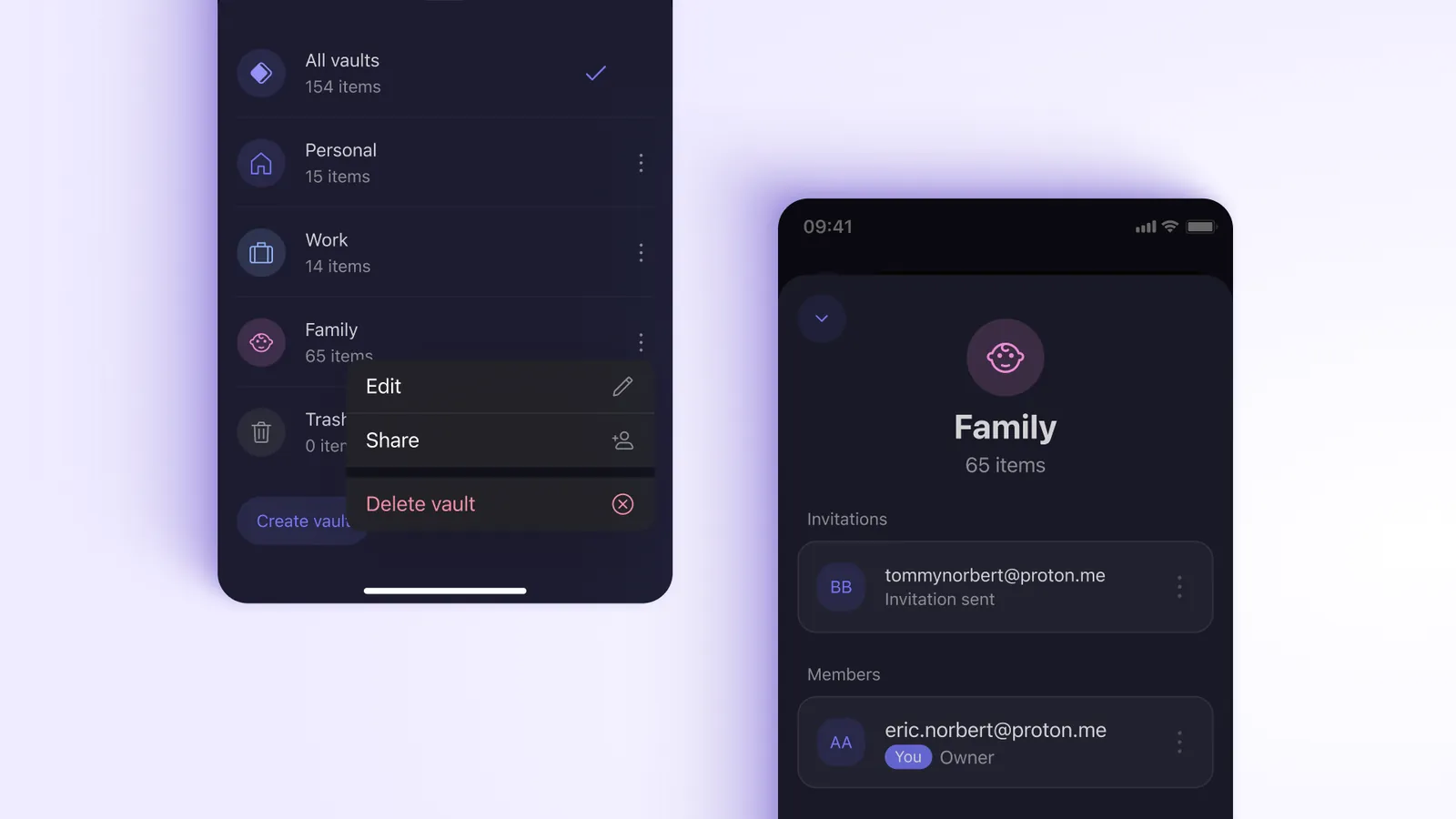
The limits are generous for a household. Proton’s documentation says free accounts can create and share up to two vaults with up to three people per vault, including yourself, while paid consumer plans can share up to 50 vaults with up to 10 Proton Pass subscribers per vault. On the pricing page the same thing reads as sharing with 2 others on Free and 10 others on Pass Plus, and Pass Family gives every member those Pass Plus limits.
A sensible family layout uses three or four vaults:
- Household: streaming services, Wi-Fi, router, utilities, shared shopping accounts. Everyone gets view access, one or two parents get admin.
- Parents: insurance, mortgage, tax portals, the family’s bank logins. Shared between the adults only.
- Kids: school portals and game accounts, where parents are admins and children can view or edit.
- Personal vaults: each member keeps their own private items, which nobody else sees.
Two details are worth knowing before you build this. First, Proton notes that if the owner of a shared vault deletes their Proton Account, the vault and all the items in it are deleted as well, so create the household vault from the account least likely to be closed. Second, someone without a Proton Pass account who receives a vault invitation gets an email inviting them to create a free account, which makes adding a grandparent less painful than it sounds.
Every member also gets hide-my-email aliases. For children and teenagers signing up for games and apps, an alias that forwards to their inbox, and can be switched off when a service starts sending spam or leaks its database, is one of the most useful protections in the plan.
What happens to your passwords if something happens to you?
Proton’s answer is Emergency Access, an account-level feature available on all paid Proton plans, including Pass Family. Proton’s Emergency Access help page explains that you can choose up to five emergency contacts who can gain access to your account in case of illness, death or another emergency that stops you from getting in yourself.
The mechanics are built around a waiting period, which is what makes the feature safe to switch on:
- Sign in to your Proton account settings, select Recovery, scroll to Emergency access and click Add emergency contact.
- Enter the contact’s email address. Proton notes that this must be a Proton Mail email address, and that both you and your contact need one.
- Choose a wait time. The options listed are 30, 14, 7, 3, 2 or 1 days.
- Confirm with your Proton password. The contact receives an email telling them they have been added.
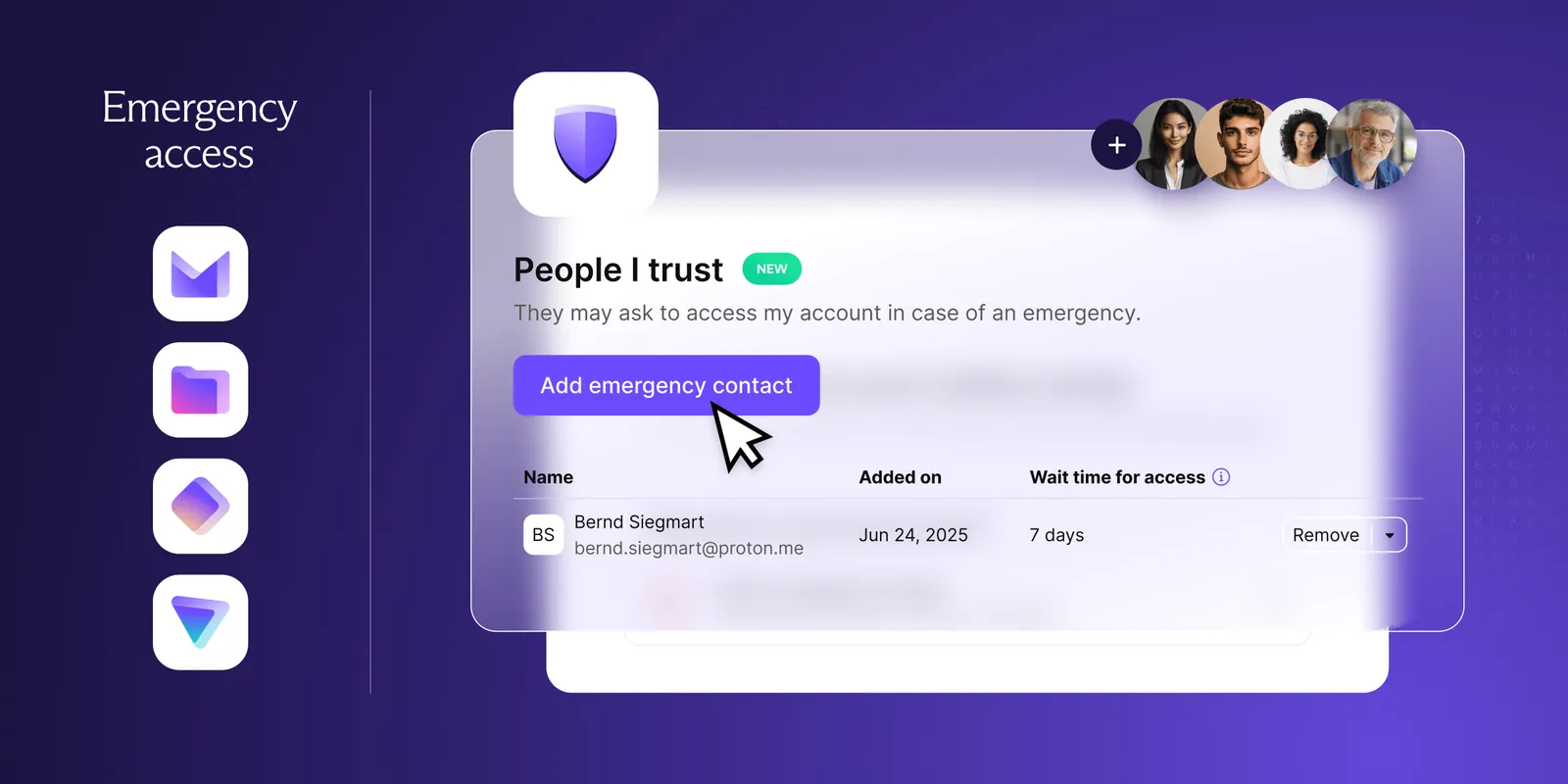
If your contact ever requests access, Proton notifies you, and you can deny the request if it is not a real emergency. If you do nothing, access is granted automatically at the end of the waiting period. Once approved, the contact can switch into your account from their own. You can remove a contact at any time, and the removal takes effect immediately.
Which wait time to pick depends on the relationship. Between spouses who share finances, a short wait means the surviving partner is not locked out of bills and insurance for a month. For an adult child or a friend named as a backup, a longer wait gives you time to notice and refuse a request you did not expect. Many families use both: a short wait for the partner, a longer one for a second contact.
Emergency Access is not the same as recovering a forgotten password. For that, Proton offers separate account recovery methods, which its support section lists as a recovery phrase, a recovery file, email and SMS recovery, and contact-assisted data recovery. Set up at least one of these for every member when you create their account; it is a five-minute job that saves a lot of distress later.
The rivals handle emergencies differently. Bitwarden’s Emergency Access lets premium users name trusted contacts with either View access to the vault or Takeover access, which sets a new master password, after a wait time the vault owner chooses. 1Password takes a household approach: a family organizer can restore access for members who forget their account password or cannot find their Secret Key, which is excellent for forgetful relatives but depends on the organizer being available.
What does each family plan cost per person?
Per person, the four plans range from about $8 to about $48 a year, and the cheapest is not automatically the best value. These are the US dollar prices on each vendor’s site on October 11, 2026, with renewal prices shown wherever the first year is discounted.
| Plan | Yearly price | Renews at | People | Per person, per year |
|---|---|---|---|---|
| Bitwarden Families | $47.88 | $47.88 | 6 | $7.98 |
| Proton Pass Family | $59.88 ($4.99/mo) | $59.88 | 6 | $9.98 |
| 1Password Families | $53.88 first year ($4.49/mo) | $71.88 ($5.99/mo) | 5 | $10.78 first year, then $14.38 |
| Proton Family | $287.88 ($23.99/mo) | $287.88 | 6 | $47.98, all Proton apps |
Pass Family costs $12 a year more than Bitwarden Families for the same six people, roughly a dollar a month for the whole household. What that buys is unlimited email aliases for every member, monthly billing if you prefer it, and the same Proton account protections, including Proton Sentinel, that Proton uses across its other apps. If you would pay for aliases anyway, Pass Family is the better value; if you would not, Bitwarden is the thriftier choice.
Against 1Password Families, Pass Family is $5.88 more in the first year and $12 cheaper every year after, while covering six people instead of five. Over three years that is $179.64 for Pass Family against $197.64 for 1Password Families.
Proton Family is a different purchase. At $287.88 a year it covers Proton Mail, Drive, VPN, Calendar and Pass for up to six people with 3 TB of shared storage, so it competes with paying for email and cloud storage separately rather than with a password manager alone. For two people, Proton Duo costs $179.88 a year with 2 TB. To compare the Pass plans side by side, open Proton’s family pricing for Pass and check the yearly option.
When is another plan the better choice?
Proton Pass Family is our pick for most households, but three situations point somewhere else.
Bitwarden Families: tight budget, technical household
Bitwarden Families covers six premium accounts with unlimited sharing, unlimited collections and organization storage for $47.88 a year. Its collections are a structured way to organise shared logins, every account includes Bitwarden Send for passing text or files to people outside the family, and premium features include Emergency Access with view or takeover options. It is the right choice when the household budget is tight and someone at home enjoys tidying up software. Our Proton Pass vs Bitwarden comparison goes deeper on the trade-offs.
1Password Families: relatives who forget passwords
1Password’s family organizer role is designed for the household with one tech-confident adult. The organizer manages members, creates and shares vaults, and can restore access for family members who forget their account password or lose their Secret Key. Guest accounts let you give someone temporary access to a single vault, which suits a babysitter or a house sitter. The trade-offs are five people instead of six, a renewal price of $71.88 a year after the first year, and no free tier for members to start on.
Proton Family: the household is leaving Google
If your family is also moving email, photos and documents away from big tech, Proton Family puts Pass inside a bundle with Mail, Drive, VPN and Calendar for up to six users. It costs far more than any password-only plan, but it replaces several subscriptions. Our guide on how to de-Google your life walks through that larger move.
How do you set up Proton Pass for a family?
Setting up takes an afternoon, mostly spent helping each person import their existing passwords. Proton’s Pass Family admin guide describes the admin steps.
- Subscribe as the admin. The admin manages the plan’s payment details and gets an admin panel. Existing Pass users keep all their data and vaults when they upgrade.
- Invite members. At pass.proton.me, open Settings, then Account, then Family, Users and addresses, and select Invite user. Anyone without a Proton account needs to create one first. You can add up to five family members, and each gets the Pass Plus features.
- Check eligibility. Proton’s guide notes that someone with an active Mail Plus, VPN Plus, Drive Plus, Unlimited, Proton Family, Visionary, Duo or business plan cannot join a Pass Family plan, so check before inviting a relative who already pays for Proton.
- Create the shared vaults. Click Vaults, name the vault, create it, then use the three-dot menu to Share and set each person’s access level.
- Move shared logins in. Move the streaming, utility and household logins into the household vault, and leave personal items in personal vaults.
- Import each member’s old passwords. Most people have years of logins saved in their browser. Proton Pass imports from Chrome, other browsers and other password managers, and each member should delete the export file once the import is done.
- Set emergency contacts and recovery. Add Emergency Access contacts for the adults, and a recovery method for every member.
If someone leaves the plan later, Proton says they drop to the free plan, keep the passwords in their private vaults, and keep access to shared vaults they are members of until you remove them from those vaults separately. Remember that second step when a relationship ends or an adult child moves out.
Which mistakes do families make with password managers?
Most family setups fail for human reasons, not technical ones. These are the mistakes worth avoiding:
- One shared account for everyone. It seems simpler, but it means everyone sees everything, there is no personal privacy, and one forgotten master password locks out the whole family. Separate accounts with shared vaults are the whole point of a family plan.
- No emergency plan. The person who sets up the password manager is usually the one who manages bills and insurance. If that person is suddenly unavailable, the family needs Emergency Access or an equivalent, configured in advance.
- Leaving passwords in the browser too. If Chrome or Safari still saves passwords alongside the password manager, the family ends up with two half-updated copies. Turn off the browser’s offer to save passwords after importing.
- Weak master passwords for children. A child’s master password protects every login in their vault. Help them choose a long passphrase they can remember, and set up a recovery method.
- Forgetting the vault owner problem. Because a shared vault disappears if its owner deletes their account, keep the household vault in a parent’s account that will stay open.
- Not removing people. When a member leaves the plan, remove them from shared vaults too, as Proton’s admin guide points out.
Frequently asked questions
What is the best password manager for families on a budget?
Bitwarden Families is the cheapest of the plans compared here, at $47.88 a year for six premium accounts, or $7.98 per person. Proton Pass Family costs $59.88 for six and adds unlimited email aliases for every member, so it is worth the extra $12 a year if aliases matter to you.
Can family members see each other’s passwords?
Only what is shared with them. In Proton Pass each member has private vaults that others cannot see, and shared vaults are visible only to the people invited, with view, edit or admin access set by the person sharing. Bitwarden and 1Password work on the same principle of private and shared spaces.
How does Emergency Access work in Proton?
On any paid Proton plan you can name up to five emergency contacts with Proton Mail addresses and choose a wait time of 1, 2, 3, 7, 14 or 30 days. If a contact requests access, you are notified and can deny it; if you do nothing, access is granted when the wait ends.
Can I share a password with a family member who does not use Proton Pass?
Yes. When you invite someone without an account to a shared vault, Proton emails them an invitation to create a free Proton Pass account. Paid plans also offer secure link sharing for a single item, which works for people who do not use Proton Pass at all.
Is Proton Pass Family the same as Proton Family?
No. Pass Family is the password manager only, for $59.88 a year for six people. Proton Family, at $287.88 a year, includes Proton Mail, Drive, VPN, Calendar and Pass for up to six users with 3 TB of storage. Members already on Proton Family cannot also join a Pass Family plan.
What happens if a family member forgets their master password?
Each Proton account can set up recovery methods such as a recovery phrase, a recovery file, or email and SMS recovery. Setting one up for every member at the start is the best protection. 1Password handles this differently: a family organizer can restore a member’s access.
Which should you choose?
For most households, the best password manager for families is Proton Pass Family. It gives six people their own full accounts, flexible shared vaults with sensible roles, unlimited email aliases for everyone, and an Emergency Access system with a waiting period that protects you from misuse while making sure the family is not locked out when it matters. At $59.88 a year it is not the cheapest, but it is the most complete for the price.
Who should look elsewhere: households where every dollar counts should choose Bitwarden Families, families with relatives who will forget passwords may prefer 1Password’s organizer recovery, and households leaving Google entirely should consider Proton Family. If you have just left LastPass, our list of LastPass alternatives covers the individual plans too. Everyone else can set up Proton Pass for the whole family, starting on the free plan if you want to test sharing before paying.
8.8 Score
Pros
- Six full Pass Plus accounts for $59.88 a year, each with private vaults.
- Shared vaults with view, edit or admin roles, and up to 50 vaults per member.
- Emergency Access with up to five contacts and a wait time you choose.
- Unlimited hide-my-email aliases for every member of the family.
Cons
- Costs $12 a year more than Bitwarden Families for the same six people.
- Emergency contacts need a Proton Mail address.
- Members with another paid Proton plan cannot join a Pass Family plan.
Final Verdict
Proton Pass Family is the best fit for most households: six people get full accounts and private vaults, shared vaults have clear roles, every member gets unlimited email aliases, and Emergency Access with a waiting period gives the family a secure way in if something happens. Bitwarden Families is $12 a year cheaper, and 1Password suits families who need an organizer to restore forgotten passwords.