



Proton Black Friday, until 30 November: 60% off Proton Mail Plus on the 12-month plan, $23.88 for the first 12 months.
After that it renews at $47.88 a year, the regular price. See every Proton Black Friday deal.
Short answer: Proton Mail Bridge is a free desktop app from Proton that lets Outlook, Thunderbird, Apple Mail and other IMAP clients read and send your Proton Mail, but it only works on a paid plan, so you need at least Mail Plus before you install it.
- Use Bridge if you already live in Outlook, Thunderbird or Apple Mail and want your Proton inbox there, including offline access.
- Use the Proton Mail desktop app instead if you just want a desktop window for Proton: it needs no IMAP setup at all.
- Skip Bridge on a phone or tablet: it runs on Windows, macOS and Linux only.
- Stay on the web app if you are on Proton Free: Bridge is not included.
Bridge needs a paid plan. Mail Plus: $4.99 a month on monthly billing, or $47.88 a year ($3.99 a month), renewing at $47.88 a year. Proton Unlimited: $119.88 a year, renewing at $119.88. Bridge itself costs nothing extra. Free plan: yes, but without Bridge. Prices in US dollars, checked October 11, 2026.
Table of contents
What does Bridge do, and do you need it?
Bridge solves one problem: Proton Mail encrypts your messages end to end, so a normal email program cannot simply log in over IMAP and read them the way it reads Gmail or Outlook.com. Bridge is a small desktop application that runs in the background on your computer, sets up a local mail server there, and encrypts and decrypts messages as they enter and leave your machine. Your email client talks to Bridge over IMAP and SMTP, and Bridge talks to Proton. Proton describes it as open source, and says your passwords never leave your machine and that Bridge never permanently stores your PGP keys or decrypted message data on disk; those are Proton’s own statements about its design, published on its Bridge page rather than something we could audit.
This guide walks through the setup from Proton’s support documentation as it read on October 11, 2026, client by client, and explains the decisions the documentation leaves to you. It does not describe a personal test; where a step depends on your version of a program, we say so.
Before installing anything, check whether you actually need Bridge. Proton now offers three ways to read your mail on a computer:
| Option | Plans | Setup | Best for |
|---|---|---|---|
| Proton Mail web app | All plans, Free included | None, sign in at your browser | Occasional use, shared computers |
| Proton Mail desktop app | Included on paid plans; a 14-day free trial on Free | Install and sign in | A dedicated window for Proton, no IMAP configuration |
| Bridge plus your own email client | Paid plans only | Install Bridge, then configure IMAP and SMTP in the client | People who rely on Outlook, Thunderbird or Apple Mail, offline mail, several accounts in one client |
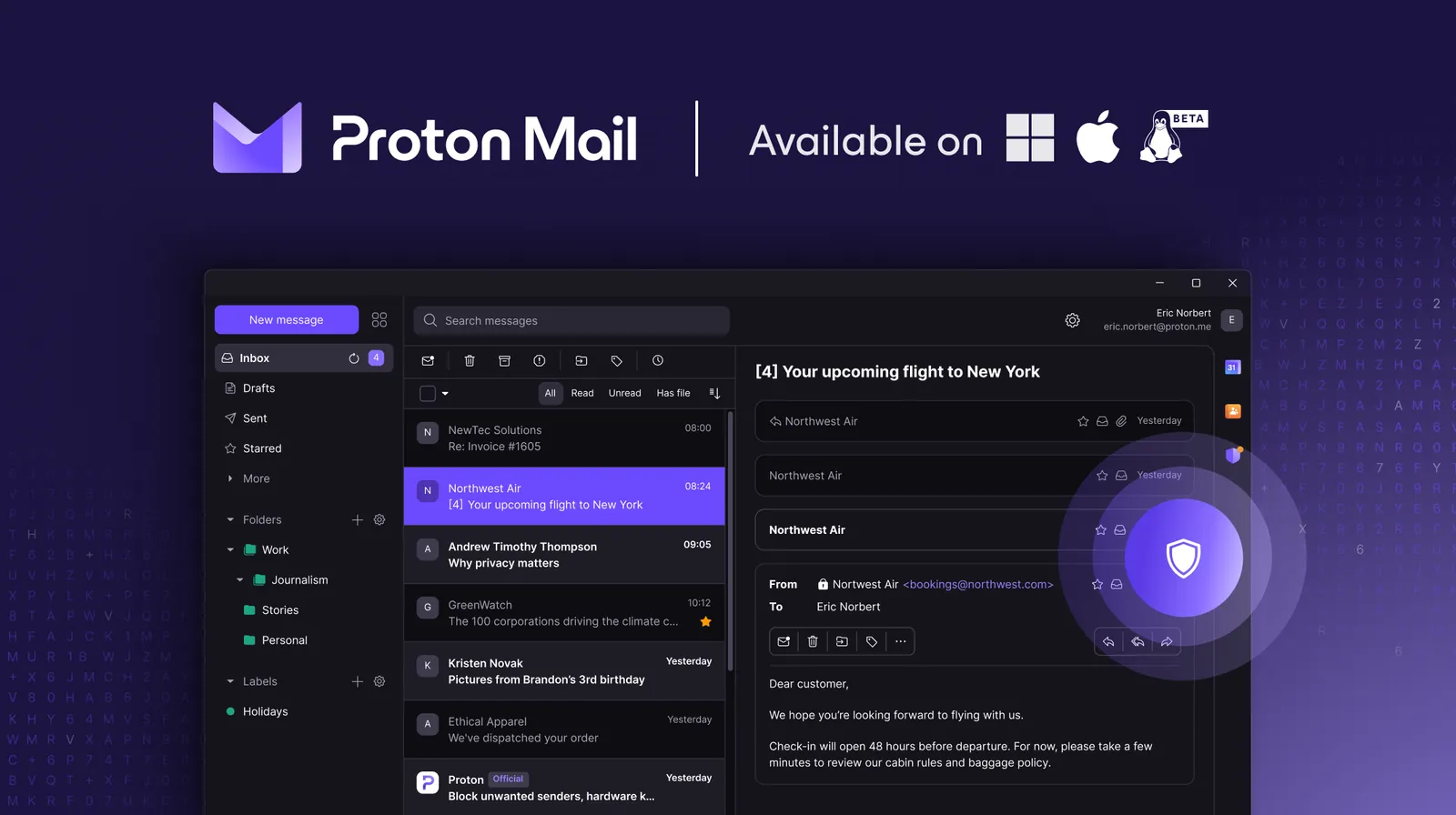
Bridge earns its place in three situations. First, you already manage several mail accounts in one client and want Proton beside them. Second, you want mail stored locally: Proton’s Bridge page highlights downloading your email when you have a good connection and reading it offline later. Third, you want your mail in standard IMAP folders for archiving or exporting: Proton does not offer POP3, but its IMAP support article notes that Bridge lets you download all your mail into a client and export it from there. Proton also says Bridge supports full-text search across your Proton emails, something that helps people who search their archive a lot.
If you are still moving over from Google, finish that first. Our guide on switching from Gmail with Easy Switch covers the import, and our hub on how to de-Google your life puts email in context with Drive, Photos and passwords. Once your mail lives in Proton, Bridge brings it to the client you prefer.
Which plans include Bridge?
Every paid personal plan that includes Proton Mail includes Bridge, and the free plan does not. Proton’s Bridge page says it plainly: Bridge “is available only with a paid plan that includes Proton Mail.” Proton’s plans support article lists “Email client support (via IMAP/SMTP and Proton Mail Bridge)” on Mail Plus, Unlimited, Duo, Family and Visionary, and lists no such line for Free. Proton’s pricing table shows the same split, with email client support included on Mail Plus and Unlimited and not on Free. Note that a single-app plan such as VPN Plus comes with the free version of Proton Mail, which Proton’s VPN pricing table marks as Free under its private inbox row, so it does not qualify.
| Plan | Bridge | Price (USD) | Renews at | Mail storage and addresses |
|---|---|---|---|---|
| Proton Free | Not included | $0 | $0 | Up to 1 GB, 1 address |
| Mail Plus, monthly | Included | $4.99 a month | $4.99 a month | 15 GB shared with Drive, 10 addresses |
| Mail Plus, yearly | Included | $47.88 a year ($3.99 a month) | $47.88 a year | 15 GB shared with Drive, 10 addresses |
| Proton Unlimited, yearly | Included | $119.88 a year ($9.99 a month) | $119.88 a year | 500 GB shared with Drive, 15 addresses |
| Proton Duo, yearly | Included | $179.88 a year for two people | $179.88 a year | 2 TB shared |
For most people who want Bridge, Mail Plus on yearly billing is the obvious plan: Bridge, the desktop app, unlimited folders and labels, and 15 GB, for $47.88 a year. Paying monthly costs $59.88 over a year, $12 more. Unlimited only makes sense if you also want the VPN, Proton Pass and 500 GB of Drive storage. If Bridge is the feature you have been missing on Free, upgrade to Mail Plus for email client access, then come back for the setup below. Bridge allows as many paid accounts as you like, so a household or a freelancer with two Proton accounts can run both through one copy.
Step 1: How do you install Bridge and sign in?
Bridge is officially supported on Windows 10 or later (64-bit), macOS Catalina or later, and Linux, according to Proton’s system requirements article. It is not available on phones or tablets. The installation follows Proton’s Bridge installation guide:
- Download Proton Mail Bridge for your operating system from Proton’s Bridge page and install it like any other app.
- Open Bridge, enter your Proton account details and click Sign in. This is the one place where your normal Proton password is used.
- Once the account is connected, Bridge offers buttons for common email clients; choose yours and the setup wizard shows the steps for it.
- Keep Bridge’s account details on screen. They show the IMAP and SMTP server, the ports, the username and a password generated by Bridge.
That generated password is the most important detail in the whole setup. Proton’s Bridge page explains that Bridge uses a unique password that is different from your login password and never leaves your computer. Your email client must use the Bridge password, not your Proton password. Almost every failed setup is someone typing their Proton login into Outlook or Thunderbird.
Two things to know from the start. Bridge must be running and signed in for your client to send or receive: if you sign out of an account in Bridge, which can also happen when you change your Proton password, the client cannot connect until you sign in again, although mail already downloaded stays in the client. And to add a second Proton account, click the plus icon in the bottom left corner of Bridge and sign in again; each account gets its own configuration details.
Step 2: How do you connect Outlook?
Outlook is officially supported on Windows in its 2010, 2013, 2016, 2019 and 2021 versions, and on macOS in its 2011, 2016 and 2019 versions plus New Outlook for Mac, according to Proton’s supported clients list. The list does not name the new Outlook for Windows, so treat it as untested. Proton’s Outlook guide uses the classic desktop version on Windows; menu names move between versions, but the settings are the same:
- In Outlook, go to File, then Account Information, then Add account.
- Choose to configure server settings manually, then select POP or IMAP (Bridge only offers IMAP for incoming mail).
- Enter your name, your Proton address, and the server, username and password from Bridge’s account details. Do not use your regular Proton password.
- Open More Settings. On the Outgoing Server tab, tick that the outgoing server requires authentication and use the same Bridge username and password.
- On the Advanced tab, set the incoming IMAP port to 1143 and the outgoing SMTP port to 1025, with TLS as the encrypted connection type for both, as Proton’s guide shows. If Bridge displays different values on your machine, use what Bridge shows.
- Still on Advanced, set Outlook not to save copies of sent items, because Proton already files sent mail, and to purge deleted items when switching folders.
- Click OK, then Next. If Outlook shows a security warning about the certificate, accept it: Bridge’s certificate is local to your computer.
One Outlook quirk is worth knowing. In combined addresses mode, Proton’s guide says Outlook cannot send from more than one of your addresses. If you use several Proton addresses or aliases and need to send from each, switch Bridge to split mode first, as described further down, and add each address as its own account in Outlook. Proton’s guide also recommends waiting for one address to finish downloading before adding the next.
Step 3: How do you connect Thunderbird?
Thunderbird is the one client Proton supports on all three systems, Windows, macOS and Linux, and it is the easiest to set up, because it usually detects Bridge’s settings by itself. Proton’s Thunderbird guide gives these steps:
- Recent Thunderbird versions add new accounts through an experimental Account Hub. Proton recommends turning it off first: Menu, Settings, General, scroll to Account Hub and untick Create accounts in the new Account Hub.
- Open the menu, choose New Account, then Email.
- Enter your name, your Proton address, and the password from Bridge’s mailbox details.
- Click Continue. Thunderbird should show Configuration found at email provider. If you use a custom domain, choose Configure manually and type the details from Bridge instead.
- Click Done and confirm the security certificate exception. Proton explains that because Bridge uses a certificate created locally on your device, no certificate authority can sign it, so you have to confirm it yourself.
- Send a test message. Thunderbird will ask you to confirm the certificate a second time, for SMTP. If an error appears right after you confirm, dismiss it and send again; Proton’s guide says it should work the second time.
To send from aliases in Thunderbird without split mode, go to Account Settings, select the account, click Manage Identities and add each alias with its name and address. That keeps one mailbox while letting you choose the sender address when you write.
What about Apple Mail and Mailbird?
Apple Mail is on Proton’s officially supported list for macOS, and Proton publishes a dedicated Apple Mail setup guide for Bridge. When you choose Apple Mail in Bridge’s setup wizard after signing in, the steps follow the same pattern as above: the Bridge username and password, the server details Bridge shows, and a certificate confirmation.
Mailbird, the Windows email client, is not on Proton’s officially supported list. Proton’s supported clients article says Bridge should work with other clients but that it cannot guarantee everything works as expected, that support may be limited, and that unsupported clients may crash or show other bugs. Mailbird’s own help centre, however, publishes a guide to connecting a Proton Mail account to Mailbird through Bridge, so the combination is documented by one of the two companies. Mailbird’s checklist asks for four things: a Proton plan with email client support through IMAP/SMTP, Bridge installed on your Windows device, Bridge signed in with its status showing Connected, and the encryption method set to STARTTLS in Bridge and TLS in Mailbird. Then, in Mailbird, you open the menu, Settings, the Accounts tab and Add, enter your name and Proton address, use the Bridge-generated username and password, and click Yes if a certificate warning appears.
The same logic applies to other IMAP clients such as eM Client or a Linux mail app: they may well work with Bridge, but Proton only tests the clients on its list, so if something misbehaves, check first whether it happens in Thunderbird too.
Should you use combined or split addresses?
Bridge starts in combined addresses mode, where mail for all your Proton addresses arrives in one mailbox in your client. That suits most people with one address and a few aliases. Split addresses mode adds each address to the client separately, as if it were its own account.
| Question | Combined mode (default) | Split mode |
|---|---|---|
| How addresses appear in the client | One mailbox for all addresses | One account per address |
| Sending from several addresses in Outlook | Not possible, per Proton’s Outlook guide | Yes, each address is its own account |
| Sending from aliases in Thunderbird | Yes, through Manage Identities | Yes |
| Setup effort | One account to configure | One account per address, added one at a time |
| Best for | One main address | Separate work and personal addresses, custom domains |
To switch, turn on the Split addresses switch in Bridge and confirm with Enable split mode. Bridge then shows separate credentials for each address. If you switch after setting up your client, you will need to remove the old combined account from the client and add each address again with its new details.
What goes wrong, and how do you fix it?
- Authentication fails. Almost always the wrong password: the client needs the password from Bridge’s account details, not your Proton login. Copy it again from Bridge.
- The client suddenly stops connecting. Bridge is closed or signed out. Changing your Proton password can sign Bridge out; sign in again in Bridge and the client reconnects.
- Bridge will not sign in on Free. Bridge needs a paid plan that includes Proton Mail. Check that your plan is Mail Plus or a bundle that includes it, not a single-app plan such as VPN Plus.
- Certificate warnings. Expected: Bridge’s certificate is created locally and cannot be signed by a certificate authority. Thunderbird asks once for IMAP and once for SMTP.
- Sent mail appears twice. Turn off the client’s own saving of sent items, as Proton’s Outlook guide recommends, because Proton already stores what you send.
- Cannot send from a second address in Outlook. Switch Bridge to split mode and add that address as its own account.
- Odd behaviour in an unlisted client. Test the same action in Thunderbird. If it works there, the problem is the client’s IMAP handling, which Proton does not support outside its list.
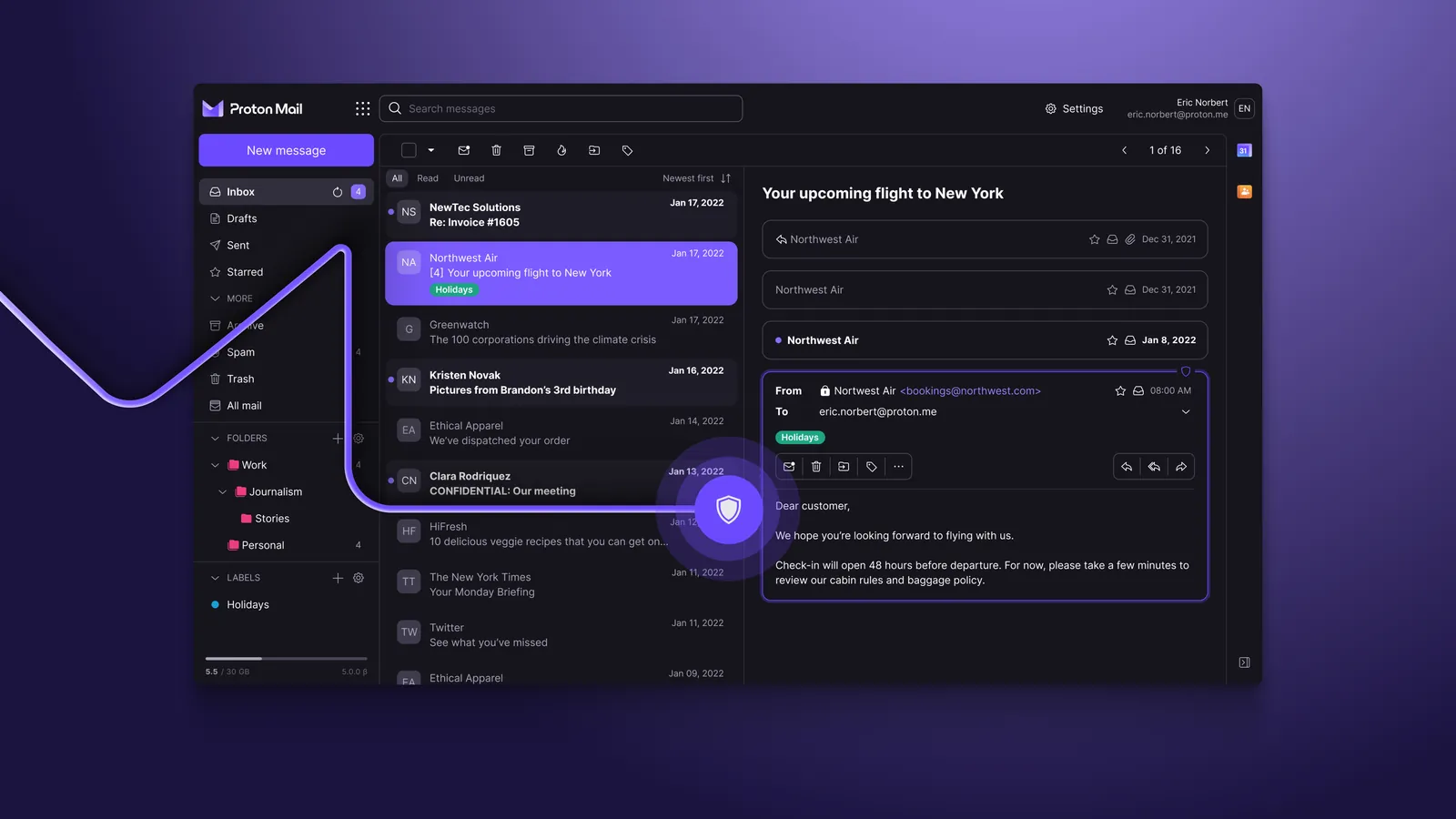
Whatever client you choose, the web app remains available as a fallback, and the mail is the same in both: Bridge is a gateway to your Proton mailbox, not a copy of it. Our Proton Mail review covers the web and mobile apps if you want to compare them with your desktop client.
Frequently asked questions
Is Proton Mail Bridge free?
The app costs nothing to download, but it only works with a paid plan that includes Proton Mail, such as Mail Plus at $47.88 a year or Unlimited at $119.88 a year. Proton Free accounts cannot use it. There is no separate Bridge fee on top of the plan.
Which email clients does Bridge support?
Proton officially tests Thunderbird on Windows, macOS and Linux; Outlook 2010 to 2021 on Windows; and Apple Mail plus Outlook 2011, 2016, 2019 and New Outlook for Mac on macOS. Other IMAP clients should work, but Proton cannot guarantee them and support may be limited.
Does Bridge work with Mailbird?
Mailbird is not on Proton’s tested list, but Mailbird’s help centre publishes a setup guide for Proton through Bridge on Windows, with Bridge set to STARTTLS and Mailbird to TLS. Use the Bridge-generated username and password, not your Proton login.
Can I use Bridge on my phone?
No. Proton’s IMAP article says Bridge is available on macOS, Windows and Linux but not on mobile devices. On a phone, use the Proton Mail app for iOS or Android, which handles encryption itself.
Does Bridge support POP3?
No. Proton does not offer POP3. Bridge works over IMAP and SMTP, and Proton notes that you can still download all your mail into a client through Bridge and export it from there if you want a local archive.
Is my mail still encrypted when I use Bridge?
Proton says Bridge encrypts and decrypts mail as it enters and leaves your computer, so messages travel and are stored on Proton’s servers encrypted as usual. Once your client downloads them, they sit on your computer like any other mail, so protect the device itself with disk encryption and a strong login.
Do I need Bridge to use Proton Mail on my computer?
No. The Proton Mail desktop app, included on paid plans and offered as a 14-day trial on Free, gives you a desktop window without any IMAP setup. Bridge is only for people who want Proton inside a third-party client.
Is Bridge worth setting up?
If you depend on Outlook, Thunderbird or Apple Mail, yes: Proton Mail Bridge lets you keep the client and the habits you have while your mail stays encrypted on Proton’s side. Setup takes a few minutes per client once you know the two rules that cause almost every problem: use the Bridge password, not your Proton password, and keep Bridge running and signed in. If you only want Proton in its own desktop window, the official desktop app is simpler, and if you are on the free plan, neither Bridge nor IMAP access is available.
The cheapest way in is Mail Plus on yearly billing at $47.88 a year, which renews at the same price and includes Bridge, the desktop app and 15 GB. When you are ready, choose a Proton Mail plan with Bridge included, install Bridge, and connect your client with the steps above.